Tag: User Frontend

  • How to Set Up and Use Tax in WP User Frontend Pro

    WP User Frontend Pro includes a built-in tax system that lets you charge the correct tax rate to customers based on their billing country and state. You can define multiple regional tax rates, set a fallback rate for customers outside your defined regions, and control whether displayed prices include or exclude tax.


    Where to Find Tax Settings

    Go to WP User Frontend → Settings → Tax in your WordPress admin.


    Tax Settings Explained

    Enable Tax

    Turn this on to activate the tax system. When disabled, no tax is calculated or displayed on the payment page, and no tax is added to payments sent to the gateway.

    Default: On

    Base Country and State

    Set the country and state where your business is located. This serves as a reference point for your tax configuration.

    Tax Rates

    Define your regional tax rates here. Each row in the table represents a tax rule for a specific country and state combination.

    ColumnDescription
    CountryThe country this rate applies to.
    State / ProvinceThe state or province within that country. Select Country Wide to apply the rate to the entire country regardless of state.
    RateThe tax percentage to apply. Enter a number like 10 for 10%. Supports up to 4 decimal places.

    To add a tax rate: Click Add Tax Rate at the bottom of the table, fill in the country, state, and rate, then save settings.

    To remove a tax rate: Click the Remove Rate button on the row you want to delete.

    Fallback Tax Rate

    If a customer’s billing address does not match any of your defined tax rates, this rate is applied instead. Enter a percentage (e.g. 5 for 5%). Set to 0 if you do not want to charge tax to customers outside your defined regions.

    Show Prices With Tax

    Controls whether prices displayed on the payment page already include tax or show tax as a separate line item.

    OptionWhat It Means
    Show prices with taxThe displayed price already includes tax. Tax is baked into the total shown to the user.
    Show prices without taxTax is shown as a separate line below the pack price. The total is the sum of the pack price and the tax amount.

    How Tax Is Calculated

    Tax is calculated based on the billing address the customer enters on the payment page, or their saved address from a previous purchase.

    Standard Calculation (No Coupon)

    Tax amount = Pack price × Tax rate ÷ 100
    Total      = Pack price + Tax amount

    Calculation With a Coupon Applied

    When a coupon is applied, the discount is subtracted first, then tax is calculated on the reduced amount.

    Discounted amount = Pack price − Coupon discount
    Tax amount        = Discounted amount × Tax rate ÷ 100
    Total             = Discounted amount + Tax amount

    Example — $50 pack, 20% coupon, 10% tax:

    Pack price          $50.00
    Coupon -20%        −$10.00
    Discounted price    $40.00
    Tax 10%              $4.00
    ──────────────────────────
    Total               $44.00

    How Tax Appears on the Payment Page

    When tax is enabled, the order summary on the payment page shows a dedicated tax line between the item price and the total:

    Subscription: Pro Plan     $50.00
    One time payment
    Tax 10%                     $5.00
    ──────────────────────────────────
    Total                       $55.00

    The tax rate shown is determined by the customer’s billing address at the time of checkout.


    Which Payment Types Support Tax

    Payment TypeTax Applied?
    Subscription packYes
    Pay-per-postYes
    Free pack activationNo (no charge, no tax)

    WooCommerce Integration

    If WooCommerce is active on your site and a customer does not have a billing address saved in WPUF, the plugin will read their billing address from their WooCommerce profile to determine the correct tax rate. Existing WooCommerce customers get the right regional tax rate without needing to re-enter their address.


    Frequently Asked Questions

    Does tax apply if the customer is in a country I haven’t configured?

    Yes — the Fallback Tax Rate is charged to any customer whose billing country and state does not match a defined rate. Set the fallback to 0 if you want to exempt unrecognised regions.

    What if I enable tax but set no tax rates and no fallback rate?

    No tax will be charged and the tax row will not appear on the payment page.

    Can I set different rates for different states within the same country?

    Yes. Add a separate row for each state. You can also add a Country Wide row as a catch-all, then add specific state rows with different rates for exceptions.

    Is tax included in what gets sent to PayPal?

    Yes. When a payment is processed, the tax amount is included in the payment total sent to the gateway.

    Does the tax system work with coupons?

    Yes. Tax is always calculated on the post-coupon (discounted) price, not the original pack price.


    • Coupon Settings — WP User Frontend → Coupons
    • Payment Settings — WP User Frontend → Settings → Payment
    • Billing Address — WP User Frontend → Settings → Address
  • How to Use Discount Coupons in WP User Frontend Pro

    If you want to offer discounts to your users on subscription plans, WP User Frontend Pro lets you create and manage coupon codes directly from your WordPress dashboard. This guide explains how to create coupons, what each setting does, and how a user applies a coupon at checkout.

    What Are Coupons in WPUF?

    Coupons in WP User Frontend Pro are discount codes that reduce the price of a subscription pack at checkout. You can offer a flat amount off or a percentage discount, restrict coupons to specific packs, limit who can use them, and set expiry dates — all without any extra plugin.

    Note: Coupons apply to subscription pack purchases only. Pay-per-post payments do not support coupon codes.


    How to Create a Coupon

    Go to WP User Frontend → Coupons → Add New in your WordPress admin.

    Coupon Settings

    SettingDescription
    Coupon CodeThe code your users type at checkout. Use something memorable, like SAVE20.
    Discount TypeChoose Amount (flat discount, e.g. $5 off) or Percent (e.g. 20% off).
    Discount AmountThe value of the discount. For percent type, enter the number without the % sign — enter 20 for 20%.
    Applicable PackagesSelect which subscription packs this coupon applies to, or choose All to allow it on every pack.
    Start DateThe date from which the coupon becomes active. Leave empty to make it active immediately.
    End DateThe expiry date. Leave empty for no expiry.
    Usage LimitMaximum number of times this coupon can be used across all users. Leave empty for unlimited use.
    Restrict to EmailsIf filled, only users with those email addresses can apply the coupon. Leave empty to allow anyone.

    How the Discount Is Calculated

    • Amount discount: Pack price − discount amount = discounted price
      Example: $50 pack with a $10 coupon → $40
    • Percent discount: Pack price − (pack price × percentage ÷ 100) = discounted price
      Example: $50 pack with a 20% coupon → $40

    If tax is enabled, tax is calculated on the discounted price, not the original pack price.


    How a User Applies a Coupon at Checkout

    1. The user selects a subscription pack and proceeds to the payment page.
    2. Below the order summary they see a “Have a discount code?” link.
    3. Clicking it reveals a text field where they enter the coupon code.
    4. They click Apply Coupon.
    5. The order summary updates in real time — the original price, discount amount, applicable tax, and new total are all displayed.
    6. To remove the coupon, they click the × button next to the applied coupon label, or click Cancel in the input field.

    What Users See After Applying a Coupon

    Package Name                $50.00
    Coupon: SAVE20 -20%        −$10.00
    Tax 7%                       $2.80
    ─────────────────────────────────
    Total                       $42.80

    Coupon Validation Rules

    WPUF validates a coupon before applying it. The coupon will be rejected with an error message if any of the following are true:

    • The coupon code does not exist.
    • The coupon has reached its usage limit.
    • The coupon start date has not been reached yet.
    • The coupon has passed its expiry date.
    • The coupon is not applicable to the pack the user is purchasing.
    • The user’s email is not on the restricted access list (when email restriction is configured).

    Frequently Asked Questions

    Can I create multiple coupons?

    Yes. You can create as many coupons as you need. Each coupon is managed independently with its own code, discount type, and restrictions.

    Can the same coupon be used more than once by the same user?

    WPUF does not restrict per-user usage by default. To limit total usage across all users, set the Usage Limit field. To restrict to specific users, use the email restriction field.

    Can I use a coupon on a pay-per-post payment?

    No. Coupons are supported on subscription pack purchases only.

    What happens if the coupon brings the price to zero or below?

    The discounted price will be set to zero. The user will not be charged.

    Does the coupon apply before or after tax?

    The coupon discount is applied first, then tax is calculated on the reduced amount.


    • Subscription Packs — WP User Frontend → Subscriptions
    • Tax Settings — WP User Frontend → Settings → Tax
    • Payment Settings — WP User Frontend → Settings → Payment
  • Collect Phone Numbers the Smart Way with WP User Frontend

    Collecting phone numbers on your WordPress site shouldn’t be complicated. Whether you’re building a membership community, running a business directory, or managing event registrations, having reliable phone number collection with proper country code formatting is essential.

    WP User Frontend Pro gives you not one, but two purpose-built phone fields — each designed for a different job. Together, they give you complete flexibility over how you collect, store, and use phone numbers across your site.

    Two Phone Fields, Two Purposes

    Profile Phone Field — Your Users’ Contact Number

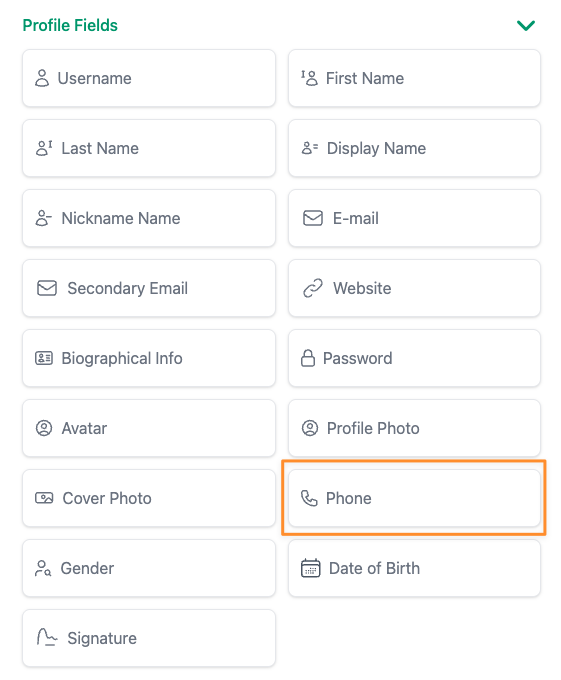
    The Profile Phone Field is designed for registration and profile forms. When a user signs up or updates their profile, this field saves the phone number directly to their user account. Think of it as their personal contact number that stays with them across your site.

    This is the field that powers phone number display in User Directory listings. When you enable it, visitors can see member phone numbers in directory profiles, contact info blocks, and search or sort users by their phone number.

    Best for:

    • Membership sites that need member contact details
    • Professional directories where visitors need to reach listed members
    • Community platforms where users share their phone number on their profile
    • Any site using the User Directory feature

    Phone Field — Flexible Integration for Any Use Case

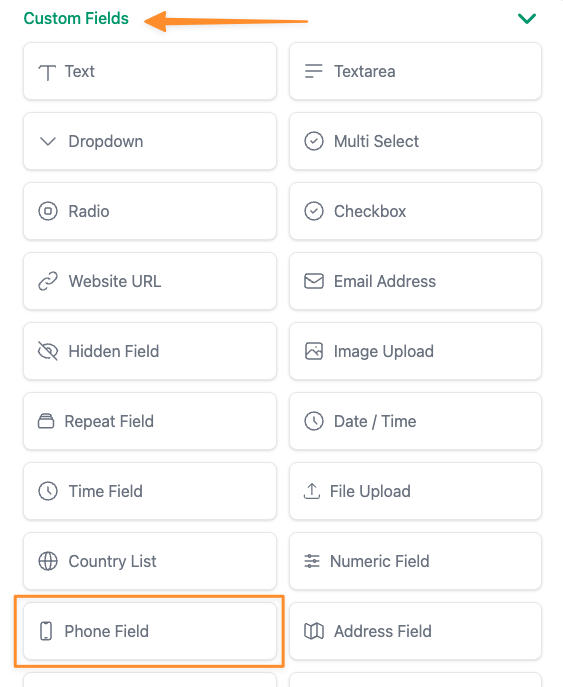
    The Phone Field gives you full control over the field’s meta key — meaning you can match it with any third-party plugin or custom integration. Need the phone number stored in a format that your CRM plugin expects? Or want it to sync with a booking system? This is the field for that.

    Best for:

    • Real estate sites collecting agent or client phone numbers on property listings
    • Job boards where applicants submit their contact number with applications
    • Event registration forms that need attendee phone numbers
    • Any form where the phone number needs to integrate with another plugin or external service

    Smart Country Code Selection Built In

    Both phone fields come with a powerful international phone input that supports 200+ countries with automatic country code detection. Your users see a clean dropdown with country flags, and the phone number is always formatted correctly.

    You get full control over the country list:

    • Show all countries — Let users pick from the full list
    • Show only specific countries — Limit the dropdown to the countries you operate in
    • Hide specific countries — Remove countries you don’t serve
    • Set a default country — Pre-select the most common country for your audience
    • Auto placeholder — Automatically show an example phone number format for the selected country so users know exactly what to enter

    Use Them Together for Maximum Flexibility

    Here’s where it gets interesting. You can use both phone fields on the same form. This is by design.

    For example, on a registration form for a freelancer marketplace:

    • Use the Profile Phone Field to collect the freelancer’s personal contact number (displayed in the User Directory)
    • Use the Phone Field to collect a business phone number that syncs with your CRM or invoicing plugin

    Or for a healthcare directory:

    • Use the Profile Phone Field for the practitioner’s main office number (visible in search results)
    • Use the Phone Field for an emergency or after-hours number stored as custom metadata

    Phone Numbers in Your User Directory

    When you use the Profile Phone Field, the collected number automatically becomes available in your User Directory. This means:

    • Phone numbers appear in user profile cards and contact info blocks
    • Visitors can click to call directly from the directory listing
    • You can search and sort directory members by phone number
    • Display is fully configurable — show or hide icons, labels, and clickable links

    Getting Started

    Adding a phone field to your form takes just a few steps:

    1. Open your form in the WP User Frontend form builder
    2. Drag the Phone or Phone Field from the field panel onto your form
    3. Configure the country list settings under the Advanced tab
    4. Set your default country and choose which countries to show or hide
    5. Save your form — that’s it!

    For the Profile Phone Field, the number is automatically available in User Directory once collected. No extra configuration needed.

    Works With Your Existing Forms

    Adding phone fields to your forms has no impact on your existing setup. Your current forms, fields, and submissions remain exactly as they are. The phone fields are fully optional — they only appear when you add them to a form.


    Ready to collect phone numbers the right way? Head to WP User Frontend form builder and try it now. With smart country code formatting, flexible storage options, and built-in User Directory support, your forms just got a whole lot more powerful.