Collecting phone numbers on your WordPress site shouldn’t be complicated. Whether you’re building a membership community, running a business directory, or managing event registrations, having reliable phone number collection with proper country code formatting is essential.
WP User Frontend Pro gives you not one, but two purpose-built phone fields — each designed for a different job. Together, they give you complete flexibility over how you collect, store, and use phone numbers across your site.
Two Phone Fields, Two Purposes
Profile Phone Field — Your Users’ Contact Number
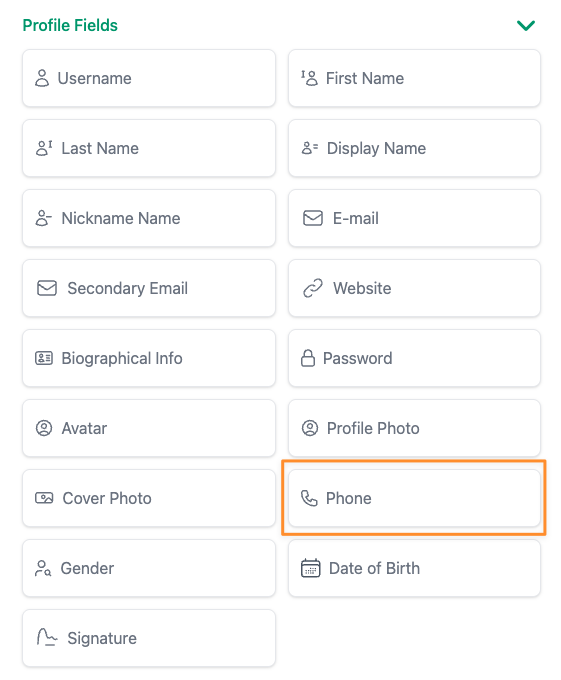
The Profile Phone Field is designed for registration and profile forms. When a user signs up or updates their profile, this field saves the phone number directly to their user account. Think of it as their personal contact number that stays with them across your site.
This is the field that powers phone number display in User Directory listings. When you enable it, visitors can see member phone numbers in directory profiles, contact info blocks, and search or sort users by their phone number.
Best for:
- Membership sites that need member contact details
- Professional directories where visitors need to reach listed members
- Community platforms where users share their phone number on their profile
- Any site using the User Directory feature
Phone Field — Flexible Integration for Any Use Case
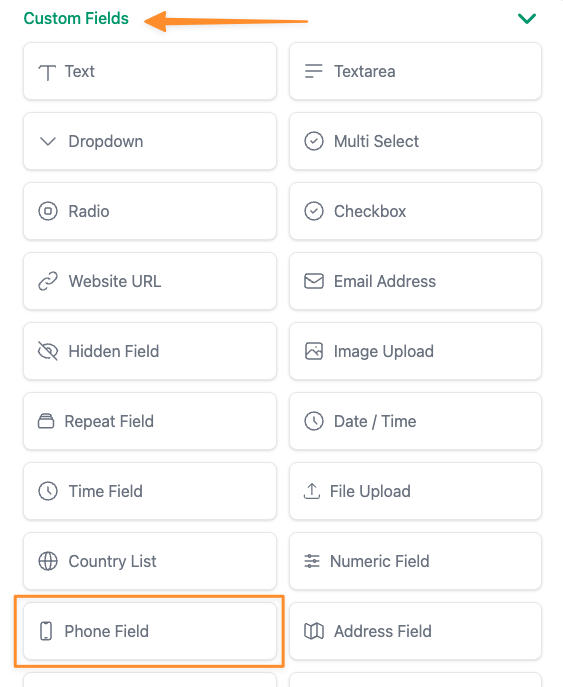
The Phone Field gives you full control over the field’s meta key — meaning you can match it with any third-party plugin or custom integration. Need the phone number stored in a format that your CRM plugin expects? Or want it to sync with a booking system? This is the field for that.
Best for:
- Real estate sites collecting agent or client phone numbers on property listings
- Job boards where applicants submit their contact number with applications
- Event registration forms that need attendee phone numbers
- Any form where the phone number needs to integrate with another plugin or external service
Smart Country Code Selection Built In
Both phone fields come with a powerful international phone input that supports 200+ countries with automatic country code detection. Your users see a clean dropdown with country flags, and the phone number is always formatted correctly.
You get full control over the country list:
- Show all countries — Let users pick from the full list
- Show only specific countries — Limit the dropdown to the countries you operate in
- Hide specific countries — Remove countries you don’t serve
- Set a default country — Pre-select the most common country for your audience
- Auto placeholder — Automatically show an example phone number format for the selected country so users know exactly what to enter
Use Them Together for Maximum Flexibility
Here’s where it gets interesting. You can use both phone fields on the same form. This is by design.
For example, on a registration form for a freelancer marketplace:
- Use the Profile Phone Field to collect the freelancer’s personal contact number (displayed in the User Directory)
- Use the Phone Field to collect a business phone number that syncs with your CRM or invoicing plugin
Or for a healthcare directory:
- Use the Profile Phone Field for the practitioner’s main office number (visible in search results)
- Use the Phone Field for an emergency or after-hours number stored as custom metadata
Phone Numbers in Your User Directory
When you use the Profile Phone Field, the collected number automatically becomes available in your User Directory. This means:
- Phone numbers appear in user profile cards and contact info blocks
- Visitors can click to call directly from the directory listing
- You can search and sort directory members by phone number
- Display is fully configurable — show or hide icons, labels, and clickable links
Getting Started
Adding a phone field to your form takes just a few steps:
- Open your form in the WP User Frontend form builder
- Drag the Phone or Phone Field from the field panel onto your form
- Configure the country list settings under the Advanced tab
- Set your default country and choose which countries to show or hide
- Save your form — that’s it!
For the Profile Phone Field, the number is automatically available in User Directory once collected. No extra configuration needed.
Works With Your Existing Forms
Adding phone fields to your forms has no impact on your existing setup. Your current forms, fields, and submissions remain exactly as they are. The phone fields are fully optional — they only appear when you add them to a form.
Ready to collect phone numbers the right way? Head to WP User Frontend form builder and try it now. With smart country code formatting, flexible storage options, and built-in User Directory support, your forms just got a whole lot more powerful.