Author: sapaythh

  • How to Set Up and Use Tax in WP User Frontend Pro

    WP User Frontend Pro includes a built-in tax system that lets you charge the correct tax rate to customers based on their billing country and state. You can define multiple regional tax rates, set a fallback rate for customers outside your defined regions, and control whether displayed prices include or exclude tax.


    Where to Find Tax Settings

    Go to WP User Frontend → Settings → Tax in your WordPress admin.


    Tax Settings Explained

    Enable Tax

    Turn this on to activate the tax system. When disabled, no tax is calculated or displayed on the payment page, and no tax is added to payments sent to the gateway.

    Default: On

    Base Country and State

    Set the country and state where your business is located. This serves as a reference point for your tax configuration.

    Tax Rates

    Define your regional tax rates here. Each row in the table represents a tax rule for a specific country and state combination.

    ColumnDescription
    CountryThe country this rate applies to.
    State / ProvinceThe state or province within that country. Select Country Wide to apply the rate to the entire country regardless of state.
    RateThe tax percentage to apply. Enter a number like 10 for 10%. Supports up to 4 decimal places.

    To add a tax rate: Click Add Tax Rate at the bottom of the table, fill in the country, state, and rate, then save settings.

    To remove a tax rate: Click the Remove Rate button on the row you want to delete.

    Fallback Tax Rate

    If a customer’s billing address does not match any of your defined tax rates, this rate is applied instead. Enter a percentage (e.g. 5 for 5%). Set to 0 if you do not want to charge tax to customers outside your defined regions.

    Show Prices With Tax

    Controls whether prices displayed on the payment page already include tax or show tax as a separate line item.

    OptionWhat It Means
    Show prices with taxThe displayed price already includes tax. Tax is baked into the total shown to the user.
    Show prices without taxTax is shown as a separate line below the pack price. The total is the sum of the pack price and the tax amount.

    How Tax Is Calculated

    Tax is calculated based on the billing address the customer enters on the payment page, or their saved address from a previous purchase.

    Standard Calculation (No Coupon)

    Tax amount = Pack price × Tax rate ÷ 100
    Total      = Pack price + Tax amount

    Calculation With a Coupon Applied

    When a coupon is applied, the discount is subtracted first, then tax is calculated on the reduced amount.

    Discounted amount = Pack price − Coupon discount
    Tax amount        = Discounted amount × Tax rate ÷ 100
    Total             = Discounted amount + Tax amount

    Example — $50 pack, 20% coupon, 10% tax:

    Pack price          $50.00
    Coupon -20%        −$10.00
    Discounted price    $40.00
    Tax 10%              $4.00
    ──────────────────────────
    Total               $44.00

    How Tax Appears on the Payment Page

    When tax is enabled, the order summary on the payment page shows a dedicated tax line between the item price and the total:

    Subscription: Pro Plan     $50.00
    One time payment
    Tax 10%                     $5.00
    ──────────────────────────────────
    Total                       $55.00

    The tax rate shown is determined by the customer’s billing address at the time of checkout.


    Which Payment Types Support Tax

    Payment TypeTax Applied?
    Subscription packYes
    Pay-per-postYes
    Free pack activationNo (no charge, no tax)

    WooCommerce Integration

    If WooCommerce is active on your site and a customer does not have a billing address saved in WPUF, the plugin will read their billing address from their WooCommerce profile to determine the correct tax rate. Existing WooCommerce customers get the right regional tax rate without needing to re-enter their address.


    Frequently Asked Questions

    Does tax apply if the customer is in a country I haven’t configured?

    Yes — the Fallback Tax Rate is charged to any customer whose billing country and state does not match a defined rate. Set the fallback to 0 if you want to exempt unrecognised regions.

    What if I enable tax but set no tax rates and no fallback rate?

    No tax will be charged and the tax row will not appear on the payment page.

    Can I set different rates for different states within the same country?

    Yes. Add a separate row for each state. You can also add a Country Wide row as a catch-all, then add specific state rows with different rates for exceptions.

    Is tax included in what gets sent to PayPal?

    Yes. When a payment is processed, the tax amount is included in the payment total sent to the gateway.

    Does the tax system work with coupons?

    Yes. Tax is always calculated on the post-coupon (discounted) price, not the original pack price.


    • Coupon Settings — WP User Frontend → Coupons
    • Payment Settings — WP User Frontend → Settings → Payment
    • Billing Address — WP User Frontend → Settings → Address

  • How to Use Discount Coupons in WP User Frontend Pro

    If you want to offer discounts to your users on subscription plans, WP User Frontend Pro lets you create and manage coupon codes directly from your WordPress dashboard. This guide explains how to create coupons, what each setting does, and how a user applies a coupon at checkout.

    What Are Coupons in WPUF?

    Coupons in WP User Frontend Pro are discount codes that reduce the price of a subscription pack at checkout. You can offer a flat amount off or a percentage discount, restrict coupons to specific packs, limit who can use them, and set expiry dates — all without any extra plugin.

    Note: Coupons apply to subscription pack purchases only. Pay-per-post payments do not support coupon codes.


    How to Create a Coupon

    Go to WP User Frontend → Coupons → Add New in your WordPress admin.

    Coupon Settings

    SettingDescription
    Coupon CodeThe code your users type at checkout. Use something memorable, like SAVE20.
    Discount TypeChoose Amount (flat discount, e.g. $5 off) or Percent (e.g. 20% off).
    Discount AmountThe value of the discount. For percent type, enter the number without the % sign — enter 20 for 20%.
    Applicable PackagesSelect which subscription packs this coupon applies to, or choose All to allow it on every pack.
    Start DateThe date from which the coupon becomes active. Leave empty to make it active immediately.
    End DateThe expiry date. Leave empty for no expiry.
    Usage LimitMaximum number of times this coupon can be used across all users. Leave empty for unlimited use.
    Restrict to EmailsIf filled, only users with those email addresses can apply the coupon. Leave empty to allow anyone.

    How the Discount Is Calculated

    • Amount discount: Pack price − discount amount = discounted price
      Example: $50 pack with a $10 coupon → $40
    • Percent discount: Pack price − (pack price × percentage ÷ 100) = discounted price
      Example: $50 pack with a 20% coupon → $40

    If tax is enabled, tax is calculated on the discounted price, not the original pack price.


    How a User Applies a Coupon at Checkout

    1. The user selects a subscription pack and proceeds to the payment page.
    2. Below the order summary they see a “Have a discount code?” link.
    3. Clicking it reveals a text field where they enter the coupon code.
    4. They click Apply Coupon.
    5. The order summary updates in real time — the original price, discount amount, applicable tax, and new total are all displayed.
    6. To remove the coupon, they click the × button next to the applied coupon label, or click Cancel in the input field.

    What Users See After Applying a Coupon

    Package Name                $50.00
    Coupon: SAVE20 -20%        −$10.00
    Tax 7%                       $2.80
    ─────────────────────────────────
    Total                       $42.80

    Coupon Validation Rules

    WPUF validates a coupon before applying it. The coupon will be rejected with an error message if any of the following are true:

    • The coupon code does not exist.
    • The coupon has reached its usage limit.
    • The coupon start date has not been reached yet.
    • The coupon has passed its expiry date.
    • The coupon is not applicable to the pack the user is purchasing.
    • The user’s email is not on the restricted access list (when email restriction is configured).

    Frequently Asked Questions

    Can I create multiple coupons?

    Yes. You can create as many coupons as you need. Each coupon is managed independently with its own code, discount type, and restrictions.

    Can the same coupon be used more than once by the same user?

    WPUF does not restrict per-user usage by default. To limit total usage across all users, set the Usage Limit field. To restrict to specific users, use the email restriction field.

    Can I use a coupon on a pay-per-post payment?

    No. Coupons are supported on subscription pack purchases only.

    What happens if the coupon brings the price to zero or below?

    The discounted price will be set to zero. The user will not be charged.

    Does the coupon apply before or after tax?

    The coupon discount is applied first, then tax is calculated on the reduced amount.


    • Subscription Packs — WP User Frontend → Subscriptions
    • Tax Settings — WP User Frontend → Settings → Tax
    • Payment Settings — WP User Frontend → Settings → Payment
  • WordPress Google Sheets Integration. Filter Data with Conditional Logic in SheetWise

    If you’re using a WordPress Google Sheets integration like SheetWise to sync your website data with Google Sheets, you may not want every single event to be recorded.

    That’s where Conditional Logic comes in. It allows you to filter what gets synced so your spreadsheet stays clean, relevant, and easy to analyze.

    What is Conditional Logic in a WordPress Google Sheets Integration?

    Conditional Logic lets you control which data is sent from WordPress to Google Sheets based on specific rules.

    For example, you can:

    • Only sync completed orders
    • Only include users with company email addresses
    • Skip empty or irrelevant fields

    This ensures your WordPress Google Sheets integration only sends meaningful data.

    How to Set Up Conditional Logic in SheetWise

    1. Open an existing integration or create a new one
    2. Configure your data source, spreadsheet, and column mapping
    3. Expand the Conditional Logic section
    4. Click Add Rule
    5. Select Field, Operator, and Value
    6. Save the integration

    Available Operators

    OperatorWhat it doesExample
    equalsExact matchStatus equals “completed”
    not equalsDoes not matchRole not equals “administrator”
    containsText includes the valueEmail contains “@company.com”
    not containsText does not include the valueTitle not contains “[Draft]”
    greater thanNumber or date is largerOrder Total greater than 100
    less thanNumber or date is smallerOrder Total less than 50
    is emptyField has no valueDescription is empty
    is not emptyField has a valueURL is not empty

    ALL vs ANY Rules

    When using multiple conditions in your WordPress Google Sheets integration, you can define how rules are combined.

    ALL Rules Must Match

    Every condition must be true. Example: Order total greater than 100 and status equals completed.

    ANY Rule Can Match

    At least one condition must be true. Example: Role equals admin or role equals editor.

    What Happens to Filtered Events?

    Events that do not meet your conditions are skipped. They appear in the Sync Log with a “Skipped” status. They are not treated as errors and do not trigger alerts.

    Best Practices

    • Start with one rule and expand gradually
    • Test using sample events before going live
    • No rules means everything will sync by default

    Why Conditional Logic Improves Your WordPress Google Sheets Integration

    • Reduces unnecessary data
    • Improves reporting accuracy
    • Saves time on cleanup
    • Keeps your Google Sheets organized

    Final Thoughts

    Conditional Logic gives you full control over your WordPress Google Sheets integration. Instead of syncing everything, you sync only what matters.

    If you’re using SheetWise, this feature can significantly improve how your data is managed and analyzed.

  • Collect Phone Numbers the Smart Way with WP User Frontend

    Collecting phone numbers on your WordPress site shouldn’t be complicated. Whether you’re building a membership community, running a business directory, or managing event registrations, having reliable phone number collection with proper country code formatting is essential.

    WP User Frontend Pro gives you not one, but two purpose-built phone fields — each designed for a different job. Together, they give you complete flexibility over how you collect, store, and use phone numbers across your site.

    Two Phone Fields, Two Purposes

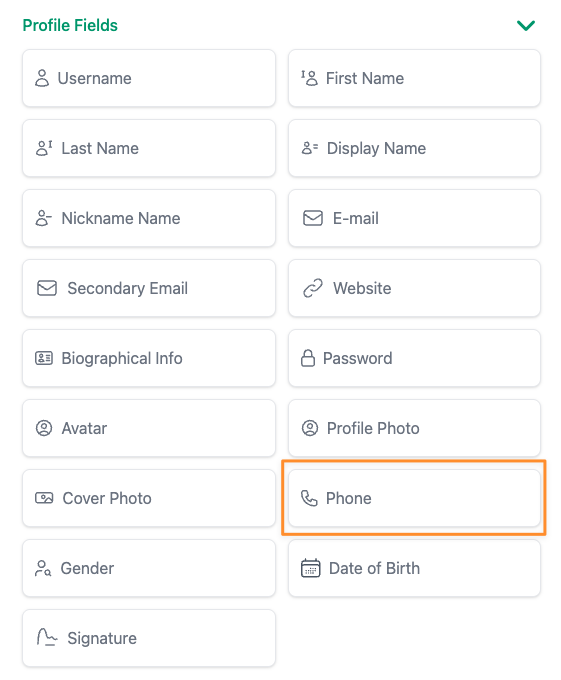
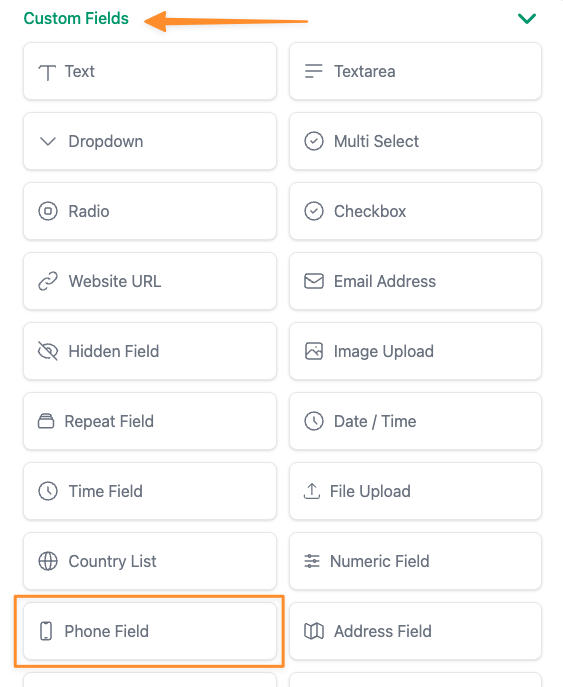
    Profile Phone Field — Your Users’ Contact Number

    The Profile Phone Field is designed for registration and profile forms. When a user signs up or updates their profile, this field saves the phone number directly to their user account. Think of it as their personal contact number that stays with them across your site.

    This is the field that powers phone number display in User Directory listings. When you enable it, visitors can see member phone numbers in directory profiles, contact info blocks, and search or sort users by their phone number.

    Best for:

    • Membership sites that need member contact details
    • Professional directories where visitors need to reach listed members
    • Community platforms where users share their phone number on their profile
    • Any site using the User Directory feature

    Phone Field — Flexible Integration for Any Use Case

    The Phone Field gives you full control over the field’s meta key — meaning you can match it with any third-party plugin or custom integration. Need the phone number stored in a format that your CRM plugin expects? Or want it to sync with a booking system? This is the field for that.

    Best for:

    • Real estate sites collecting agent or client phone numbers on property listings
    • Job boards where applicants submit their contact number with applications
    • Event registration forms that need attendee phone numbers
    • Any form where the phone number needs to integrate with another plugin or external service

    Smart Country Code Selection Built In

    Both phone fields come with a powerful international phone input that supports 200+ countries with automatic country code detection. Your users see a clean dropdown with country flags, and the phone number is always formatted correctly.

    You get full control over the country list:

    • Show all countries — Let users pick from the full list
    • Show only specific countries — Limit the dropdown to the countries you operate in
    • Hide specific countries — Remove countries you don’t serve
    • Set a default country — Pre-select the most common country for your audience
    • Auto placeholder — Automatically show an example phone number format for the selected country so users know exactly what to enter

    Use Them Together for Maximum Flexibility

    Here’s where it gets interesting. You can use both phone fields on the same form. This is by design.

    For example, on a registration form for a freelancer marketplace:

    • Use the Profile Phone Field to collect the freelancer’s personal contact number (displayed in the User Directory)
    • Use the Phone Field to collect a business phone number that syncs with your CRM or invoicing plugin

    Or for a healthcare directory:

    • Use the Profile Phone Field for the practitioner’s main office number (visible in search results)
    • Use the Phone Field for an emergency or after-hours number stored as custom metadata

    Phone Numbers in Your User Directory

    When you use the Profile Phone Field, the collected number automatically becomes available in your User Directory. This means:

    • Phone numbers appear in user profile cards and contact info blocks
    • Visitors can click to call directly from the directory listing
    • You can search and sort directory members by phone number
    • Display is fully configurable — show or hide icons, labels, and clickable links

    Getting Started

    Adding a phone field to your form takes just a few steps:

    1. Open your form in the WP User Frontend form builder
    2. Drag the Phone or Phone Field from the field panel onto your form
    3. Configure the country list settings under the Advanced tab
    4. Set your default country and choose which countries to show or hide
    5. Save your form — that’s it!

    For the Profile Phone Field, the number is automatically available in User Directory once collected. No extra configuration needed.

    Works With Your Existing Forms

    Adding phone fields to your forms has no impact on your existing setup. Your current forms, fields, and submissions remain exactly as they are. The phone fields are fully optional — they only appear when you add them to a form.


    Ready to collect phone numbers the right way? Head to WP User Frontend form builder and try it now. With smart country code formatting, flexible storage options, and built-in User Directory support, your forms just got a whole lot more powerful.

  • How to Add an Event Calendar to Your WordPress Site

    How to Add an Event Calendar to Your WordPress Site

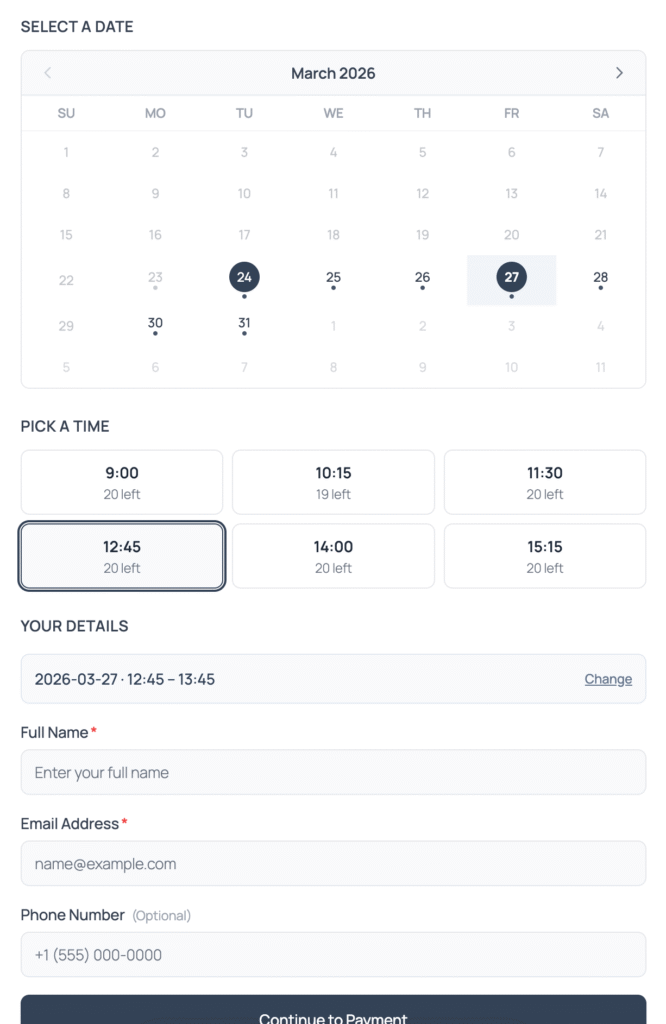
    Your WordPress site can list pages and posts just fine, but when it comes to showing events on a calendar, with dates, times, and the ability to book, you need something more. A visual event calendar lets visitors browse what’s coming up, see availability at a glance, and take action without leaving your site.

    This guide shows you how to add an interactive event calendar to any WordPress page in a few minutes, using a free plugin. No coding, no theme changes.

    What You’ll End Up With

    An interactive calendar on your site that:

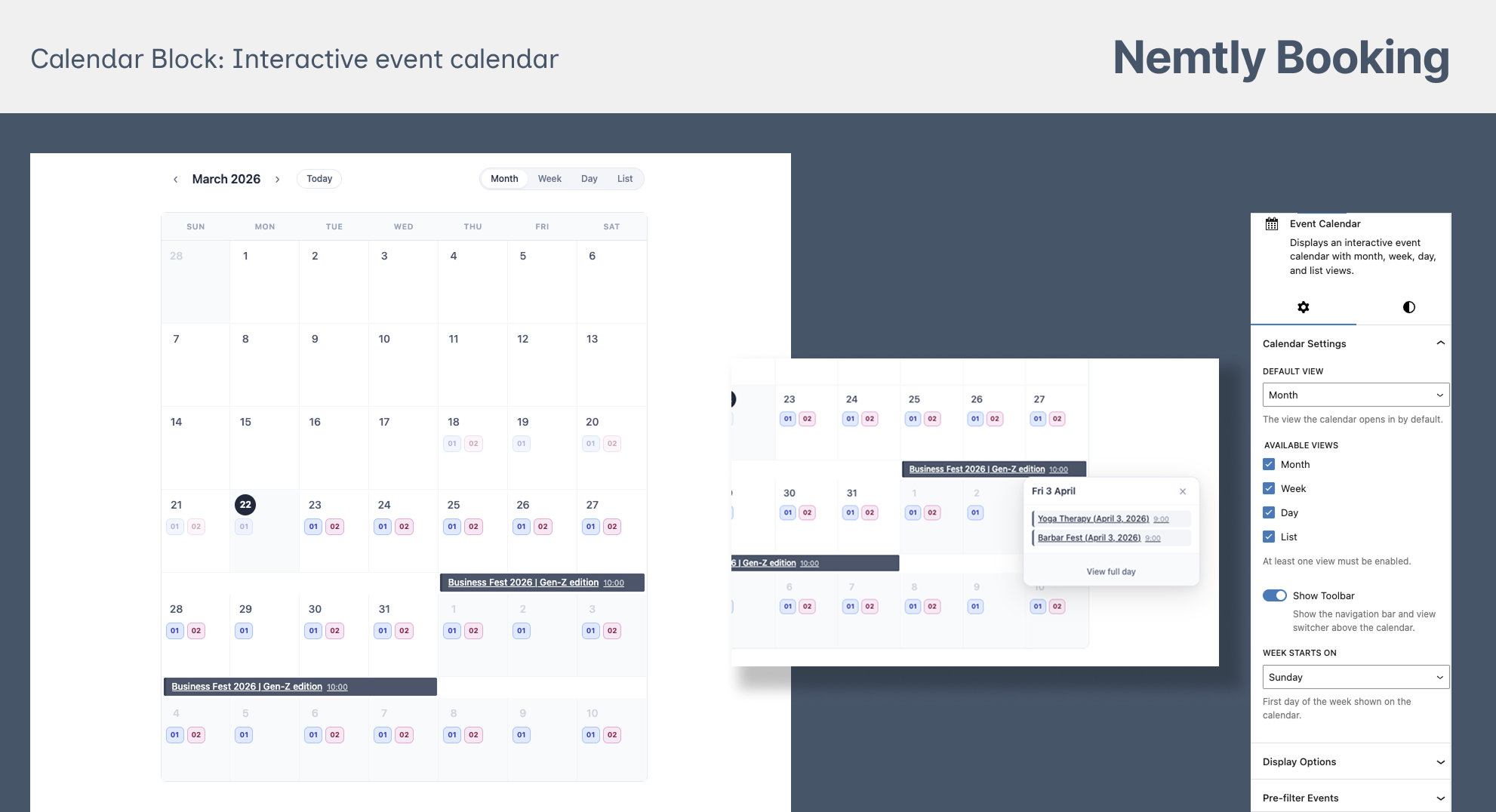
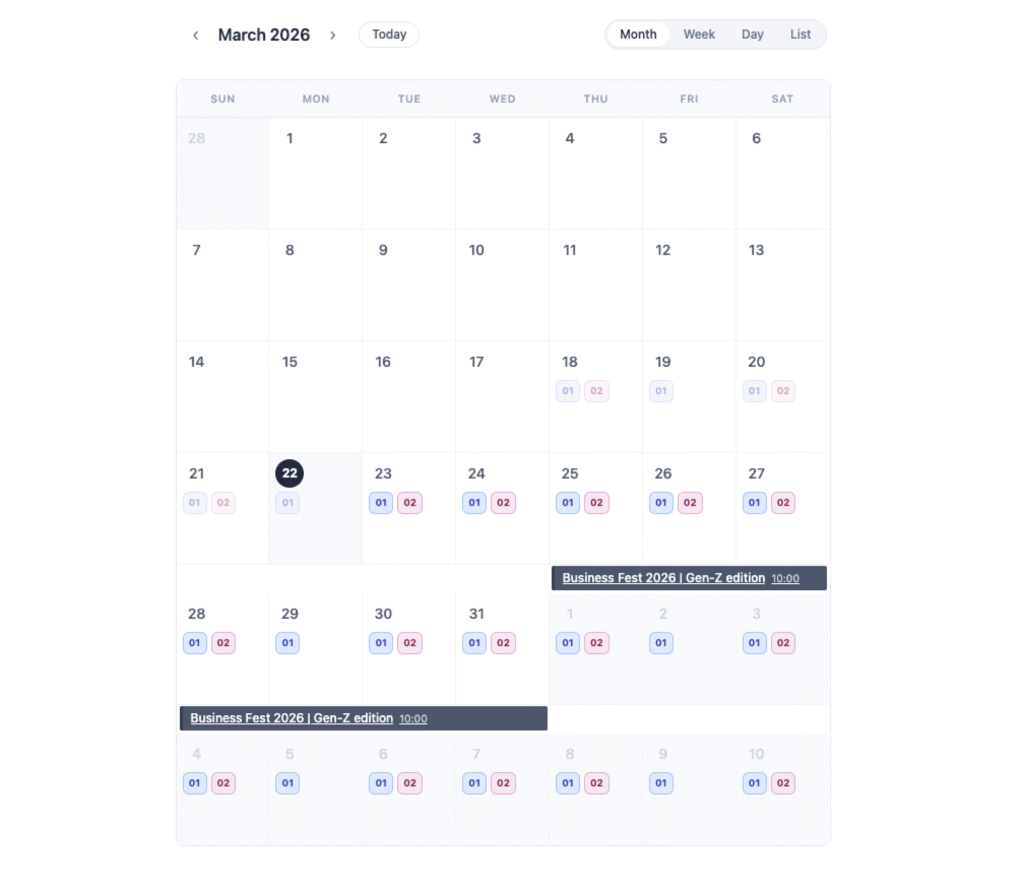
    • Shows events in month, week, day, or list views
    • Lets visitors switch between views
    • Displays multi-day events spanning across calendar cells
    • Links each event to its own page for details and booking
    • Works on mobile and desktop
    • Updates automatically when you add or edit events

    Step 1: Install Nemtly Booking

    If you haven’t already:

    1. Go to Plugins → Add New in your WordPress admin
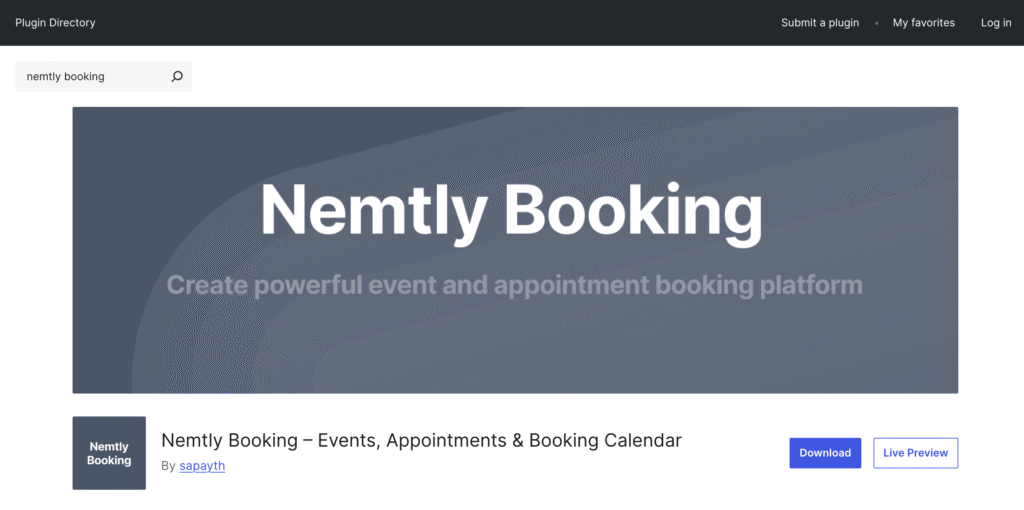
    2. Search for “Nemtly Booking”
    3. Click Install Now, then Activate

    The plugin handles both event management and calendar display, so you don’t need separate plugins for each.

    Step 2: Create a Few Events

    A calendar isn’t much to look at without events on it. If you already have events, skip ahead to Step 3.

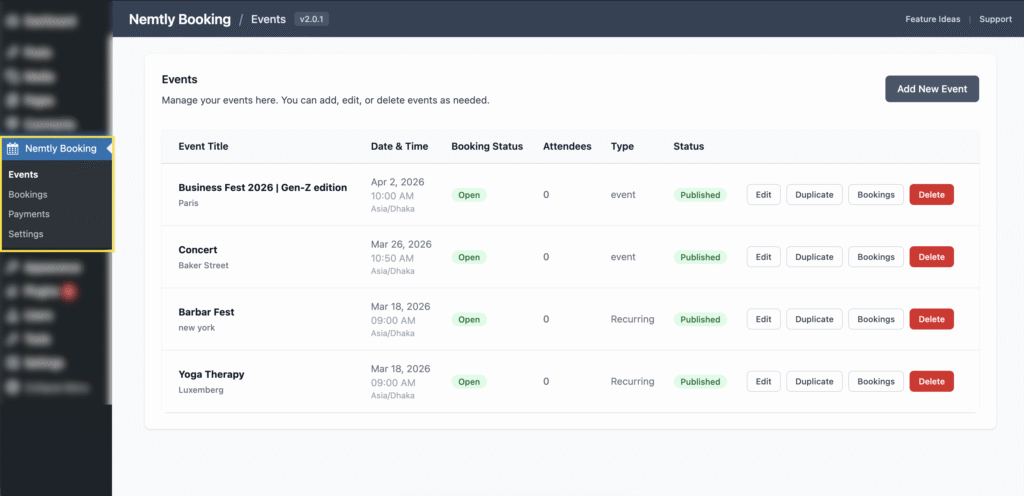
    Go to Nemtly Booking → Events and click Add New Event. You’ll need at minimum:

    • A title (e.g., “Team Strategy Workshop”)
    • A date and time — set in the Schedule step of the event form
    • Click Publish

    Create 2–3 events across different dates so your calendar has something to display. You can always edit or add more later.

    For a detailed walkthrough of event creation, see this guide: How to Create a Booking System on WordPress.

    Step 3: Add the Calendar to a Page

    You have two options depending on how you build pages.

    Option A: Gutenberg Block (Block Editor)

    1. Open any page in the WordPress block editor (or create a new one, e.g., “Events Calendar”)
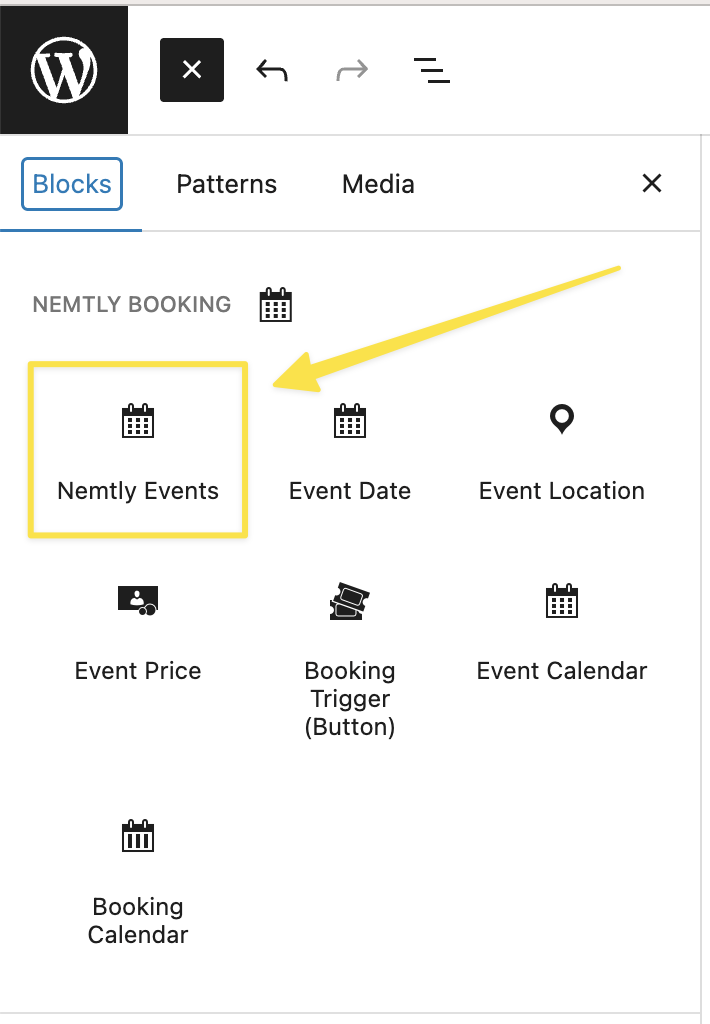
    2. Click the + inserter button and search for “Event Calendar”
    3. Insert the block

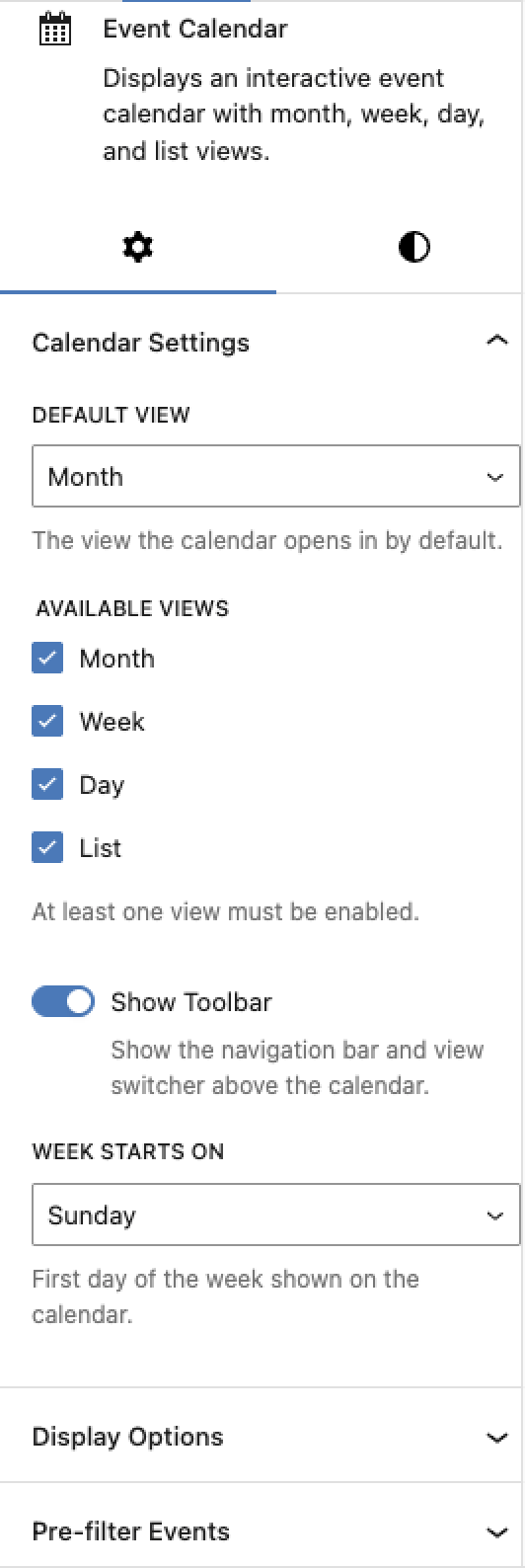
    The calendar appears immediately in the editor with a live preview. You can configure it using the block sidebar panel:

    • Default view — Which view loads first: month, week, day, or list
    • Available views — Which views visitors can switch between using the toolbar
    • Show toolbar — Toggle the navigation bar with month/week navigation arrows
    • Show filters — Toggle filter dropdowns above the calendar
    • First day of week — Sunday or Monday
    • Events per cell — Maximum events shown per day before a “+N more” link appears (default: 3)
    • Time format — 12-hour, 24-hour, or match your WordPress site setting
    • Show event time — Display start times on event chips
    • Show “Book Now” button — Whether event popups include a booking link
    • Show past events — Include or hide events that have already happened
    • Height — Auto (grows with content) or fixed pixel height

    Publish the page and your calendar is live.

    Option B: Shortcode (Classic Editor or Page Builders)

    Paste this shortcode into any page, post, or widget area:

    [nemtly_calendar]

    That’s it for the defaults. The calendar renders with month view, all four views available, toolbar and filters visible.

    To customize, add attributes:

    [nemtly_calendar view="week" show_filters="false" week_starts_on="monday"]

    Available shortcode attributes:

    AttributeOptionsDefault
    viewmonth, week, day, listmonth
    viewsComma-separated list of allowed viewsmonth,week,day,list
    show_toolbartrue, falsetrue
    show_filterstrue, falsetrue
    week_starts_onsunday, mondaysunday
    events_per_cellAny number3
    time_format12h, 24h, site_defaultsite_default
    show_event_timetrue, falsetrue
    show_booking_btntrue, falsetrue
    show_past_eventstrue, falsefalse
    heightauto, fixedauto
    height_pxAny number (pixels)600

    The shortcode works inside Elementor, Beaver Builder, Divi, and any other page builder that supports WordPress shortcodes.

    Understanding the Calendar Views

    Each view serves a different purpose. Choosing the right default depends on your use case.

    Month View

    The classic calendar grid. Best for:

    • Event organizers showing a full month of activities
    • Businesses with events spread across many dates
    • Visitors who want a big-picture overview

    Events appear as chips on their date. Multi-day events span across cells. If a day has more events than the events_per_cell limit, a “+N more” link appears.

    Week View

    A 7-day view with time slots visible. Best for:

    • Service providers showing a week of available appointments
    • Fitness studios displaying a weekly class schedule
    • Visitors who need to see exact times

    Day View

    A single day with hour-by-hour detail. Best for:

    • Busy days with many events (conferences, all-day workshops)
    • Showing a detailed schedule for a specific date

    List View

    A chronological list of upcoming events — no grid, just a clean list. Best for:

    • Simple event listings without the visual calendar overhead
    • Mobile-first sites where a grid may feel cramped
    • Visitors who just want to scan what’s coming up

    Clicking an Event

    When a visitor clicks an event on the calendar, they’re taken to the event’s dedicated WordPress page. There they can see the full description, date and time details, location, pricing, and the booking form.

    This means your calendar serves as both a visual overview and a navigation tool — visitors find what interests them, click through, and book.

    Common Setups

    Here are a few real-world examples of how to configure the calendar for different use cases.

    Yoga Studio Weekly Schedule

    Show a repeating weekly schedule where students pick a class time:

    [nemtly_calendar view="week" show_past_events="false" week_starts_on="monday" time_format="12h"]

    Or use the block and set Default view to “week” and First day of week to “Monday” in the sidebar.

    Conference or Meetup

    Show a single month with event days highlighted:

    [nemtly_calendar view="month" views="month,list" show_booking_btn="true"]

    Limiting available views to month and list keeps it simple — no one needs week/day view for a monthly conference calendar.

    Consultant Availability

    Show a day-by-day breakdown of open appointment slots:

    [nemtly_calendar view="day" views="day,week" time_format="24h"]

    Day view as default lets clients immediately see today’s open times.

    Simple Upcoming Events Page

    Skip the calendar grid entirely and just show a list:

    [nemtly_calendar view="list" views="list" show_toolbar="false"]

    This gives you a minimal, clean list of upcoming events with no calendar UI — just titles, dates, and times.

    Calendar vs Event List: When to Use Which

    Nemtly Booking also offers an event list via the [nemtly_event_list] shortcode or the Nemtly Events block. Here’s when to use each:

    Use Calendar WhenUse Event List When
    You want a visual date-based layoutYou want a card/grid layout like a blog
    Visitors need to find events by dateVisitors want to browse and search events
    You have events spread across many datesYou have a smaller number of featured events
    You want multiple view options (month/week/day)You want filtering, search, and pagination

    You can use both on the same site — for example, a “Calendar” page with [nemtly_calendar] and an “Events” page with [nemtly_event_list].

    Tips

    • Keep the default view relevant to your audience. If most visitors want to see what’s happening this week, set view="week". If they want the big picture, stick with view="month".
    • Limit views if your audience is non-technical. Four view options can be overwhelming. For a simple site, views="month,list" gives enough flexibility without clutter.
    • Use fixed height for consistent page layouts. If the calendar sits alongside other content, set height="fixed" and height_px="600" to prevent the page from shifting as visitors switch views.
    • Hide past events to keep things clean. The default show_past_events="false" is usually what you want. Enable it only if you need an archive view.

    Summary

    Adding an event calendar to WordPress takes about 5 minutes:

    1. Install and activate Nemtly Booking
    2. Create your events
    3. Drop the Event Calendar block or [nemtly_calendar] shortcode onto any page
    4. Configure the view and options to match your use case

    The calendar updates automatically as you add, edit, or remove events. Visitors can browse by month, week, day, or list — and click through to book directly.

    Get started: Install Nemtly Booking from WordPress.org — it’s free.

  • How to Create a Booking System on WordPress (Free, No Code)

    How to Create a Booking System on WordPress (Free, No Code)

    If you run a service business, teach classes, or organize events, you’ve probably wished your WordPress site could handle bookings on its own, without forwarding people to a third-party scheduling tool or dealing with back-and-forth emails.

    Good news: you can set up a fully working booking system on WordPress for free, without writing a single line of code. This guide walks you through the entire process. From installing a plugin to accepting your first booking with online payments.

    What You Need Before Starting

    • A WordPress site (self-hosted, version 5.8 or higher)
    • Admin access to your WordPress dashboard
    • A Stripe account if you want to accept payments (optional. Free events work without it)

    That’s it. No special hosting, no PHP extensions, no developer required.

    Step 1: Install a Booking Plugin

    WordPress doesn’t include booking functionality out of the box, so you need a plugin. In this guide we’ll use Nemtly Booking, a free plugin that handles events, appointments, and payments in one package.

    1. In your WordPress admin, go to Plugins → Add New
    2. Search for “Nemtly Booking”
    3. Click Install Now, then Activate

    After activation, you’ll see a new Nemtly Booking menu item in your admin sidebar.

    Step 2: Create Your First Event

    Now for the main event (pun intended). Click Nemtly Booking → Events in your admin menu, then click Add New Event.

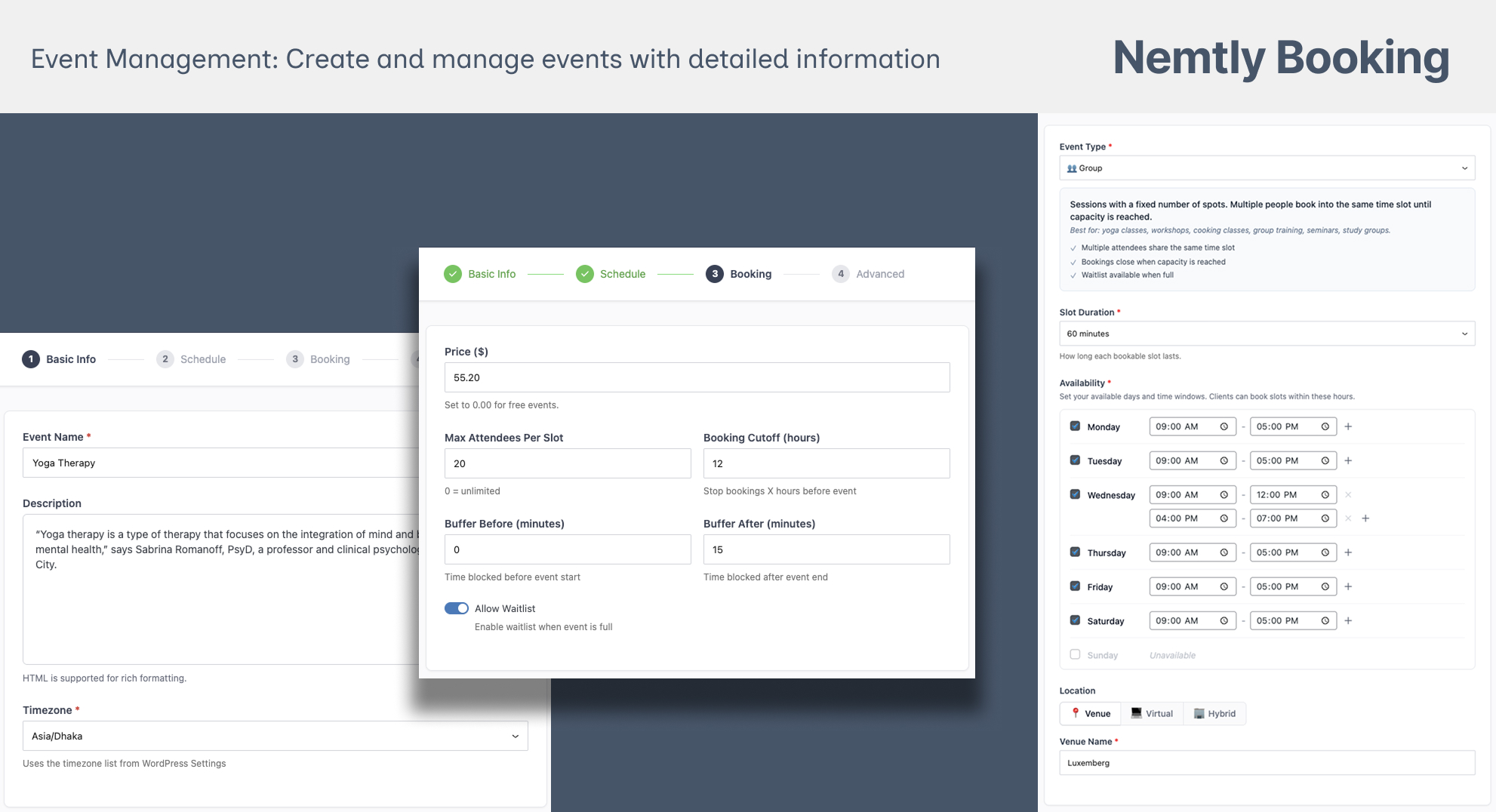
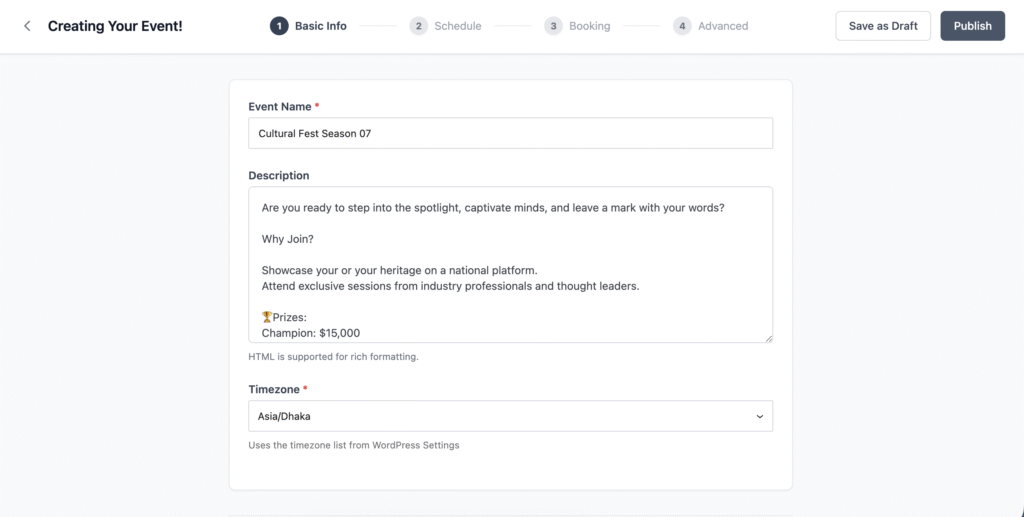
    The event creation form has four steps:

    Basic Info

    Enter a title for your event or service. For example:

    • “30-Minute Career Consultation”
    • “Saturday Morning Yoga Class”
    • “Annual Marketing Conference”

    Add a description explaining what attendees can expect. This appears on the event page your customers will see.

    Schedule

    This is where it gets interesting. First, pick your event type:

    • One-on-One — Private appointments with one attendee per slot. Best for consultations, tutoring, therapy sessions. The plugin creates individual time slots (e.g., every 30 minutes between 9 AM and 5 PM).
    • Group — Classes or workshops where multiple people attend the same slot. You set the capacity (up to 20 by default). Best for yoga classes, cooking workshops, group coaching.
    • Event — A single gathering on a specific date. Attendees pick the date, not a time slot. Best for conferences, meetups, webinars.

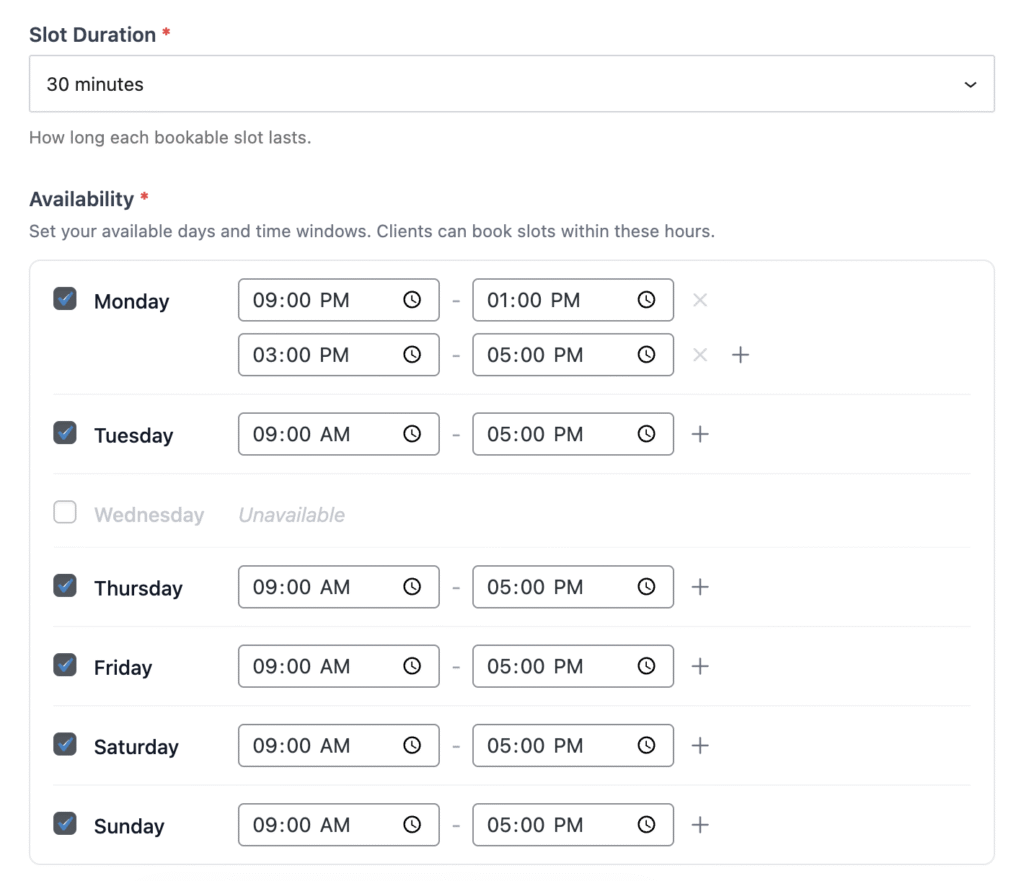
    For slot-based types (one-on-one and group), you’ll set your availability — which days of the week and what hours you’re available. The plugin generates bookable time slots automatically based on the duration you set.

    For example, if you offer 30-minute consultations and mark Tuesday and Thursday as available from 9 AM to 5 PM, the plugin creates sixteen 30-minute slots across those two days.

    You can also set:

    • Location — A physical address or a virtual meeting URL
    • Buffer time — Padding before or after each appointment to prevent back-to-back scheduling

    Booking & Pricing

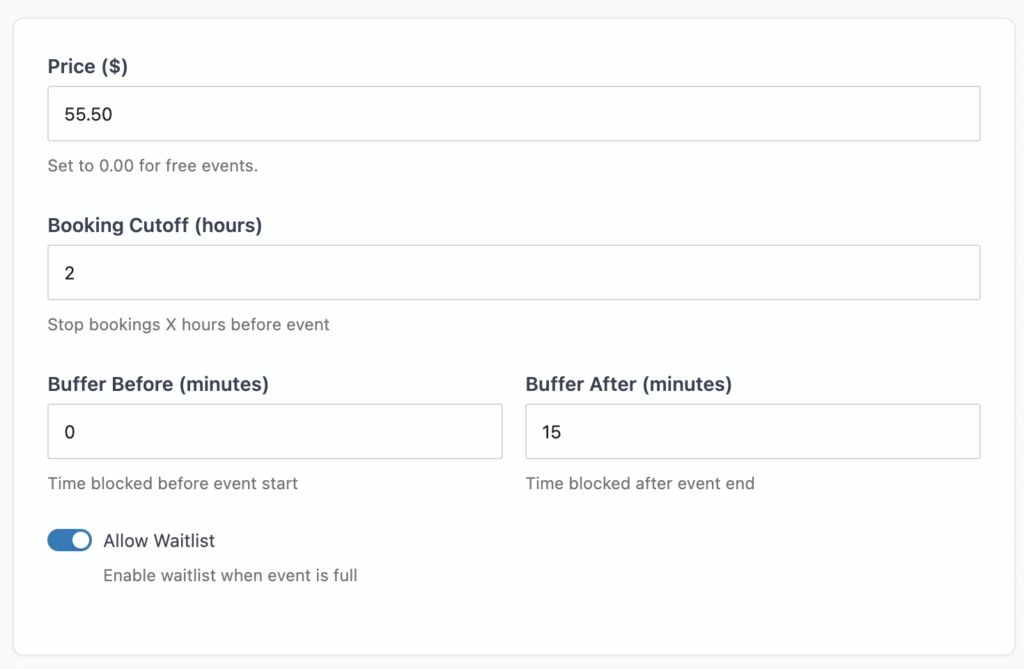
    Set the price for your event. Enter 0 or leave it blank for free events — the payment step will be skipped entirely for your customers.

    Configure:

    • Max attendees — How many people can book each slot (or the entire event)
    • Booking cutoff — How far in advance someone must book (e.g., 2 hours before for one-on-one, 48 hours for events)
    • Waitlist — Allow people to join a waitlist when slots fill up (available for group and event types)

    Advanced

    Optionally add a featured image that shows on event listings and the calendar.

    Click Publish when you’re ready, or Save as Draft to finish later.

    Step 3: Display Events on Your Site

    Your events need to appear somewhere your visitors can find them. Nemtly Booking gives you two ways to do this: Gutenberg blocks and shortcodes.

    Option A: Gutenberg Blocks (Block Editor)

    Open any page in the block editor and add one of these blocks:

    Event Calendar — Displays an interactive calendar where visitors can browse events by month, week, day, or list view. Visitors click an event to see details and book.

    Nemtly Events — A list/grid of your upcoming events with filters, search, and pagination. This is actually a variation of the core WordPress Query Loop block, so it works anywhere the block editor is available.

    Option B: Shortcodes (Classic Editor or Page Builders)

    If you use a classic editor or a page builder like Elementor, use shortcodes instead:

    • [nemtly_calendar] — The interactive event calendar
    • [nemtly_event_list] — A searchable, filterable event grid with pagination

    Just paste the shortcode into any page or post. Shortcodes work inside Elementor, Beaver Builder, Divi, and any other builder that supports them.

    Both options display your events with real-time availability. When a visitor clicks an event, they see available dates and times and can book directly.

    Step 4: Set Up Payments (Optional)

    If you’re charging for your events, connect Stripe so customers can pay during the booking process.

    1. Go to Nemtly Booking → Settings → Payments
    2. Enable Stripe as a payment method
    3. Enter your Stripe Publishable Key and Secret Key (find these in your Stripe Dashboard under Developers → API Keys)
    4. Enter your Webhook Secret (create a webhook endpoint in Stripe pointing to the URL shown in your settings)
    5. Save changes

    Nemtly uses Stripe’s Payment Element, which means your customers can pay with credit cards, Apple Pay, Google Pay, and other methods you’ve enabled in your Stripe account — all from a single checkout interface.

    For offline payments (cash, bank transfer, check), you can also enable manual payment recording and provide instructions that appear during checkout.

    Don’t need payments? Skip this step entirely. Free events work without any payment gateway.

    Step 5: Test the Booking Flow

    Before going live, test the experience your customers will have:

    1. Visit the page where you added your calendar or event list
    2. Click on an event
    3. Pick an available date and time slot (for slot-based events)
    4. Fill in the booking form — name, email, and optionally phone number
    5. Complete payment (if it’s a paid event) or click “Confirm Booking” (if it’s free)
    6. Check your email for the booking confirmation

    In your admin panel under Nemtly Booking → Bookings, you’ll see the new booking with its status.

    What Your Customers Experience

    Here’s the full booking flow from your customer’s perspective:

    1. Browse — They visit your page and see your events in a calendar or list
    2. Select — They click an event and pick a date and time
    3. Book — They fill in their name and email
    4. Pay — They complete payment through Stripe (or see manual payment instructions, or skip payment for free events)
    5. Confirm — They receive a confirmation email immediately
    6. Remind — They get an automated reminder email before the event (if you’ve enabled reminders in settings)
    7. Manage — They can view their bookings anytime through a customer dashboard (more on that below)

    No account creation required. No passwords to remember.

    Bonus: Set Up a Customer Dashboard

    Give your customers a place to view their booking history:

    1. Create a new page in WordPress (e.g., “My Bookings”)
    2. Add the shortcode [nemtly_booking_dashboard]
    3. Publish the page

    When customers visit this page, they enter their email address and receive a magic link — a one-time login link sent to their inbox. Clicking it logs them in for 24 hours without needing a password or WordPress account. They can see all their past and upcoming bookings.

    Bonus: Sync with Google Calendar

    If you manage your schedule in Google Calendar, Nemtly Booking can sync events both ways:

    1. Go to Nemtly Booking → Settings and connect your Google account via OAuth2
    2. Once connected, confirmed bookings automatically appear in your Google Calendar
    3. If a booking is cancelled, the Google Calendar event is removed automatically

    Set it up once and it runs in the background.

    Bonus: Email Reminders

    Reduce no-shows by sending automated reminder emails:

    1. Go to Nemtly Booking → Settings → Emails
    2. Enable Automated Reminders
    3. Set how many hours before the event the reminder should be sent (default: 24 hours)
    4. Customize the reminder subject and message

    Reminders go out automatically via WordPress cron — no manual work needed.

    Summary

    Here’s what you’ve built — in about 15 minutes and zero code:

    • A booking system with real-time availability
    • An event calendar or event list on your website
    • Online payments via Stripe (or free events without payment)
    • Automated confirmation and reminder emails
    • A customer dashboard with magic link login
    • Google Calendar sync

    All of this is free. Nemtly Booking is available on WordPress.org with no premium tier required for the features covered in this guide.

    Ready to get started? Install Nemtly Booking from WordPress.org and create your first event in minutes.

  • User Avatar Block – Complete User Guide

    User Avatar Block – Complete User Guide

    Meet the User Avatar Block

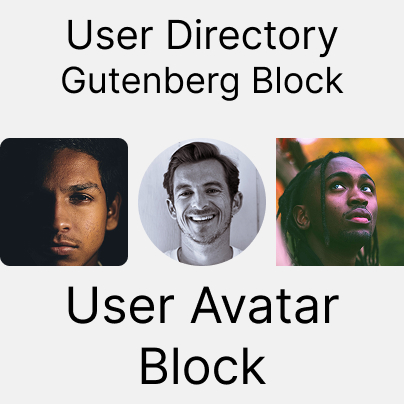
    When you’re building a user directory, community site, or membership portal, a user’s photo can make all the difference. The User Avatar Block lets you display user profile pictures beautifully and consistently across your site, from compact lists to full-page profiles. Whether users upload their own images or rely on fallbacks, this block ensures every profile looks polished.

    Let’s explore how this block works, how to customize it, and how you can make the most of it in your designs.


    What is the User Avatar Block?

    The User Avatar Block is part of the WPUF User Directory system and is designed to display profile photos for your users. It acts like a dynamic “photo frame” that automatically pulls the right image for each user. Ideal for directories, team pages, or profile layouts.

    Key Features

    • Display each user profile pictures
    • Choose avatar size (Small, Medium, Large, Extra Large, or Custom)
    • Customize avatar shape (Circle, Square, Rounded)
    • Handle missing profile photos with fallback options
    • Use initials or Gravatar as fallbacks

    How to Use the User Avatar Block

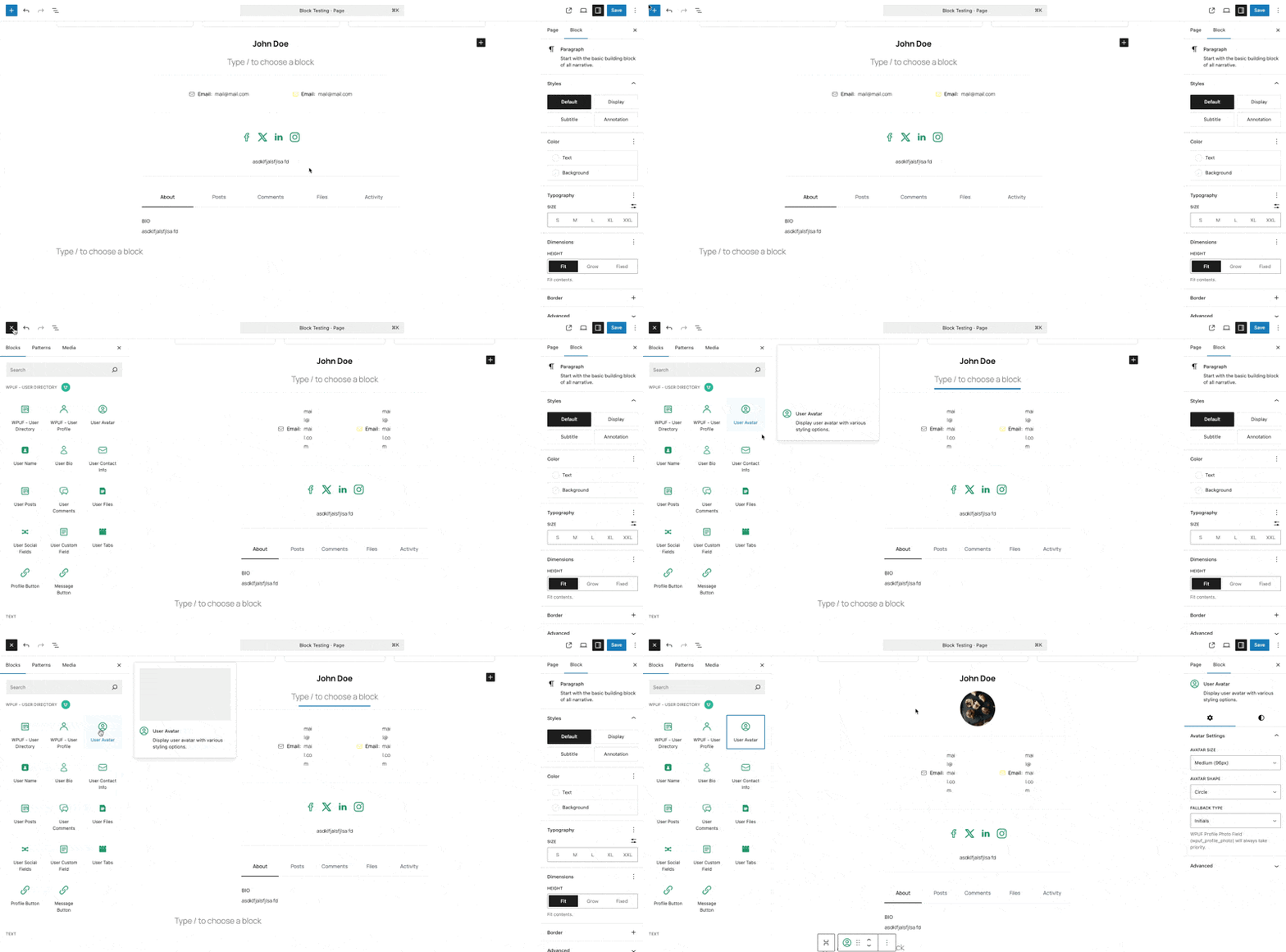
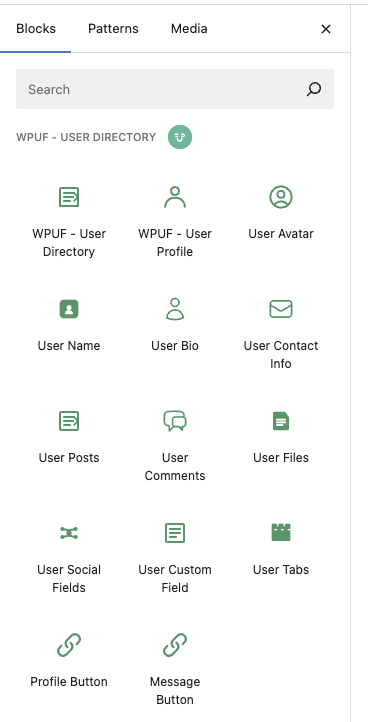
    Step 1: Add the Block

    1. Open any User Directory or User Profile block.
    2. Click the + icon to add a new block.
    3. Search for “User Avatar”.
    4. Select WPUF – User Avatar from the block list.

    Step 2: Configure the Settings

    Once added, click on the block to open the settings panel on the right. From there, you can control everything. Size, shape, and fallback behavior.


    Block Settings Explained

    Avatar Size

    Choose how large you want the profile photo to appear:

    • Small (32px) – Compact, great for lists
    • Medium (96px) – Perfect for directories
    • Large (150px) – Best for profile pages
    • Extra Large (300px) – Ideal for featured users
    • Custom – Set a specific pixel value (32px to 600px)
    • If you pick “Custom,” you can define the exact size (between 32px and 600px).
      Use this to match unique design layouts or branding requirements.

    Avatar Shape

    Decide how avatars are styled:

    • Circle – Modern and friendly
    • Square – Clean and professional
    • Rounded – Balanced, soft-cornered design

    Fallback Type

    Choose what appears when a user has no uploaded photo:

    • Initials – Displays user initials in a styled background (default)
    • Gravatar – Pulls from the Gravatar service if available
    • The block automatically prioritizes available profile photos.
    • If none exist:
    • It tries Gravatar (if selected).
    • Otherwise, it shows Initials by default.

    Unlock the User Directory module with WPUF Professional and start showcasing your users beautifully. Get it directly from weDevs site.


    Best Practices

    Size Recommendations

    • Lists: Small to Medium
    • Profiles: Medium to Large
    • Featured areas: Large to Extra Large

    Shape Recommendations

    • Circle – Modern, social feel
    • Square – Professional, clean look
    • Rounded – Versatile, balanced

    Fallback Recommendations

    • Initials – Best default (always available)
    • Gravatar – Great for communities with existing Gravatar users

    Troubleshooting

    No Avatar Showing?

    • Check fallback type (Initials or Gravatar).
    • Make sure user data is loaded.
    • Test with different users.

    Avatar Too Small or Large?

    • Verify the size option.
    • Keep custom sizes within 32px to 600px.
    • Check your theme’s layout constraints.

    Shape Looks Off?

    • Confirm the shape setting.
    • Try different shapes to isolate CSS conflicts.
    • Clear your cache after making changes.

    Fallback Not Working?

    • Make sure the fallback type is selected.
    • Ensure the user has a display name (for initials).
    • Test with multiple accounts.

    Styling and Customization

    Built-In WordPress Styles

    The block supports:

    • Margins and padding

    Custom CSS Example

    /* Enlarge avatars slightly on hover */
    .wpuf-user-avatar:hover img {
      transform: scale(1.1);
    }
    
    /* Add a subtle shadow */
    .wpuf-user-avatar img {
      box-shadow: 0 2px 4px rgba(0,0,0,0.1);
    }
    

    Combine With Other Blocks

    Pair the User Avatar Block with:

    • User Name Block – for profile cards
    • User Bio Block – for team pages
    • User Contact Info Block – for directories
    • Profile Button Block – for clickable cards

    These combinations help you create flexible, professional user layouts.


    FAQ

    What if a user doesn’t have a photo?

    The block automatically shows initials or pulls from Gravatar, depending on your fallback setting.

    Can I use custom image sizes?

    Yes! Choose “Custom” and set any pixel value between 32 and 600.

    Does it work with all WordPress themes?

    Yes. The block follows your theme’s styles, and you can override with CSS if needed.

    Can I use it outside the User Directory block?

    It’s primarily designed for the WPUF User Directory and Profile blocks. So it should not work outside the WPUF User Directory or User Profile block.

    How can I make avatars load faster?

    Use optimized images, caching plugins, and avoid unnecessarily large sizes.


    What’s Next?

    You’ve mastered the User Avatar Block, the visual cornerstone of user profiles.
    Next up in this series, we’ll explore the User Name Block, where you’ll learn how to display names dynamically and combine them with avatars for beautiful user cards.

    Stay tuned for the next guide!

  • User Directory Block – Complete User Guide

    User Directory Block – Complete User Guide

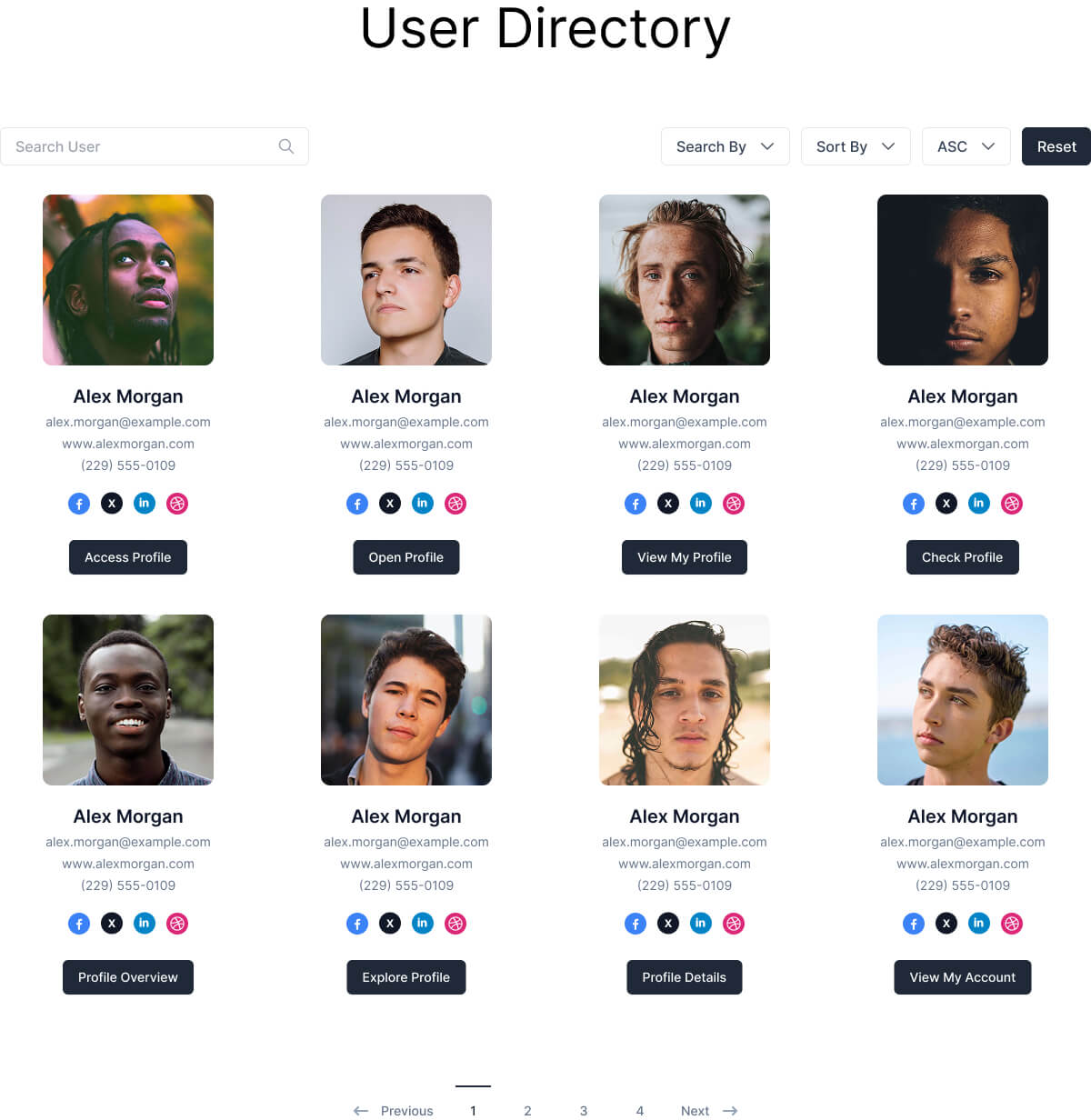
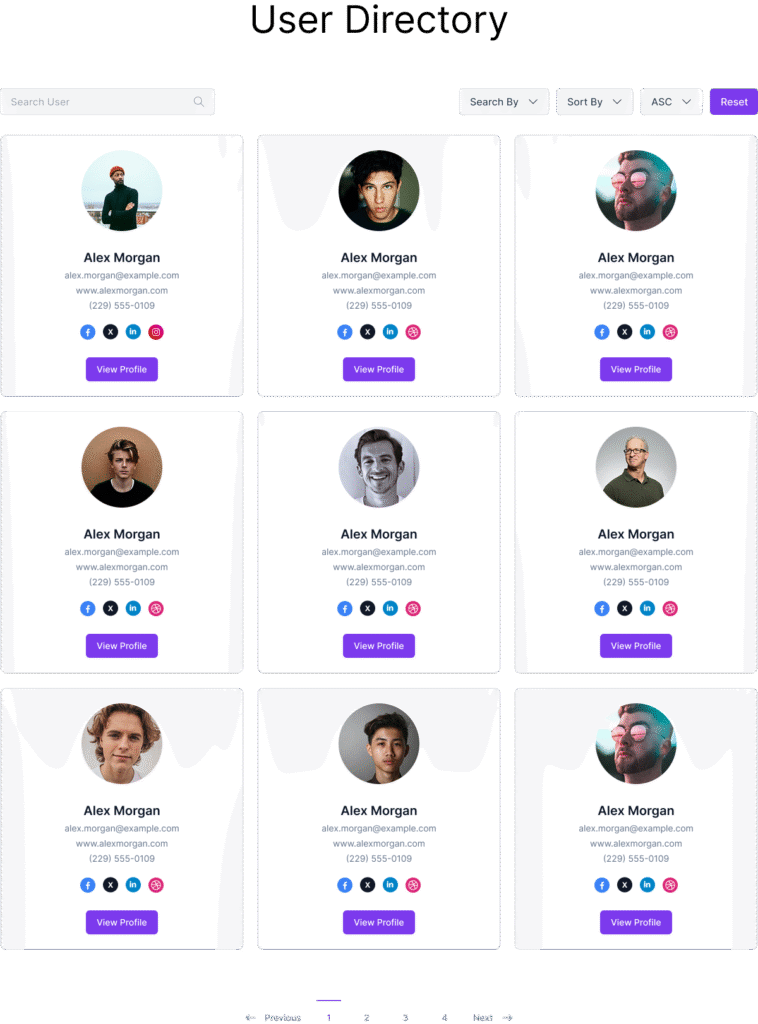
    If you want to create a WordPress user directory or a membership listing without custom code, the User Directory Block is your starting point. This block acts as the main container for displaying users on your site in different layouts (table, cards, or grids).

    Whether you’re building a team page, community directory, or author list, the User Directory Block gives you full control over search, sorting, roles, and layout, directly inside the Gutenberg editor.


    What is the User Directory Block?

    The User Directory Block is the backbone of the WPUF User Directory system. Think of it as a digital phone book that organizes your users into a professional, searchable, and customizable listing.

    What You Can Do With It

    • Display lists of users (team, staff, members, authors, etc.)
    • Enable search to quickly find specific users
    • Allow frontend sorting by name, email, registration date, and more
    • Control how many users appear per page (pagination included)
    • Show only certain user roles or exclude others
    • Choose from multiple layouts (table, card, or grid)
    • Add user details (avatar, name, bio, contact info) using inner blocks

    Getting Started

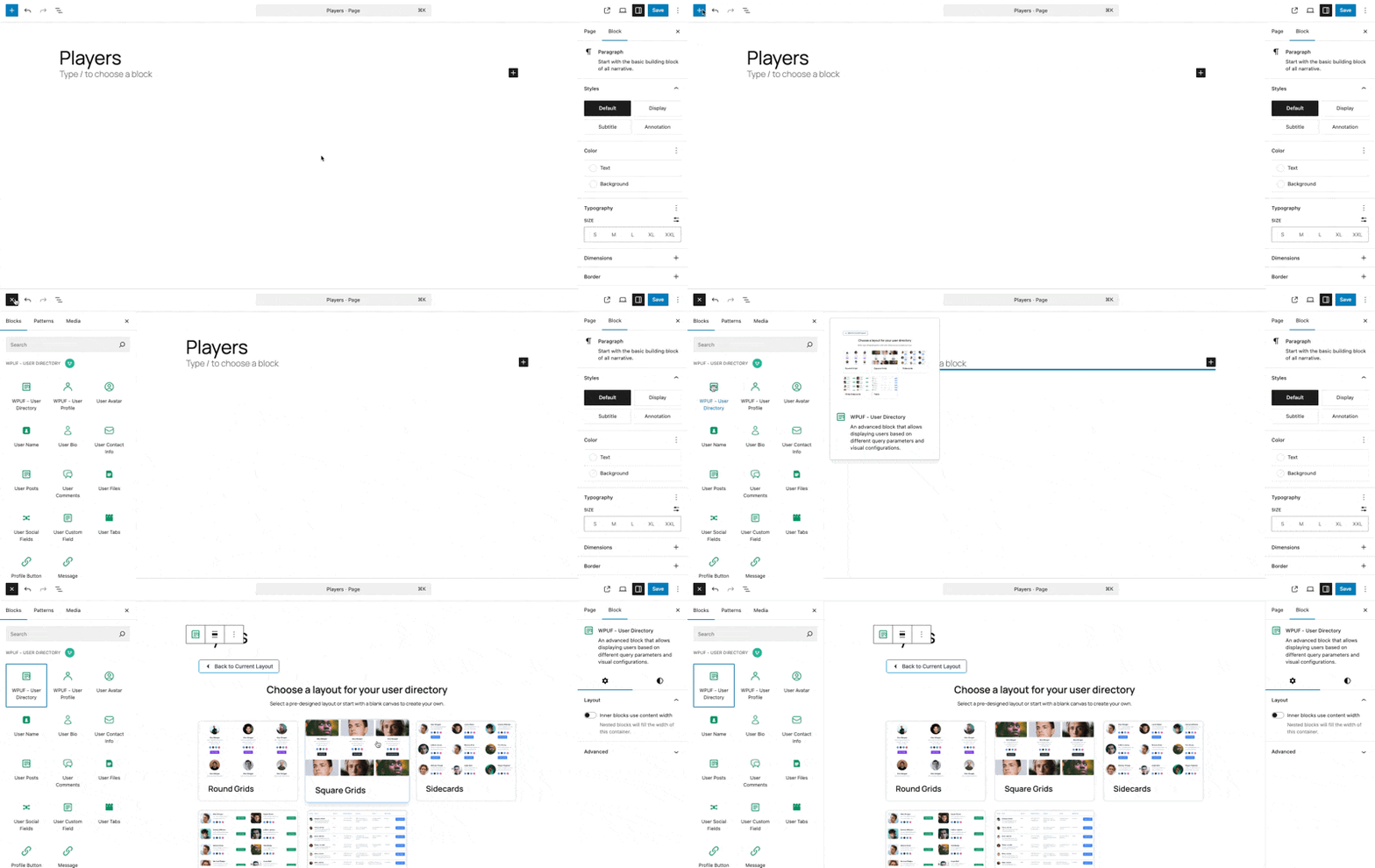
    1. Step 1: Add the Block
      Open your WordPress page or post in the block editor.
    2. Click the “+” button to add a new block.
    3. Search for “User Directory”.
    4. Select WPUF – User Directory to insert it.

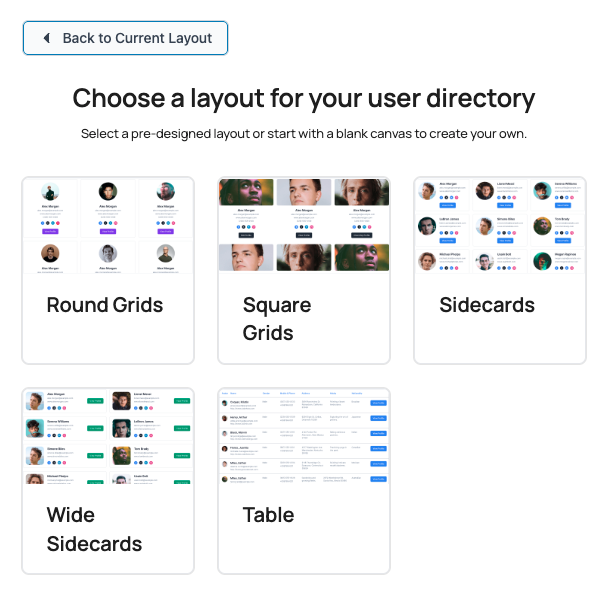
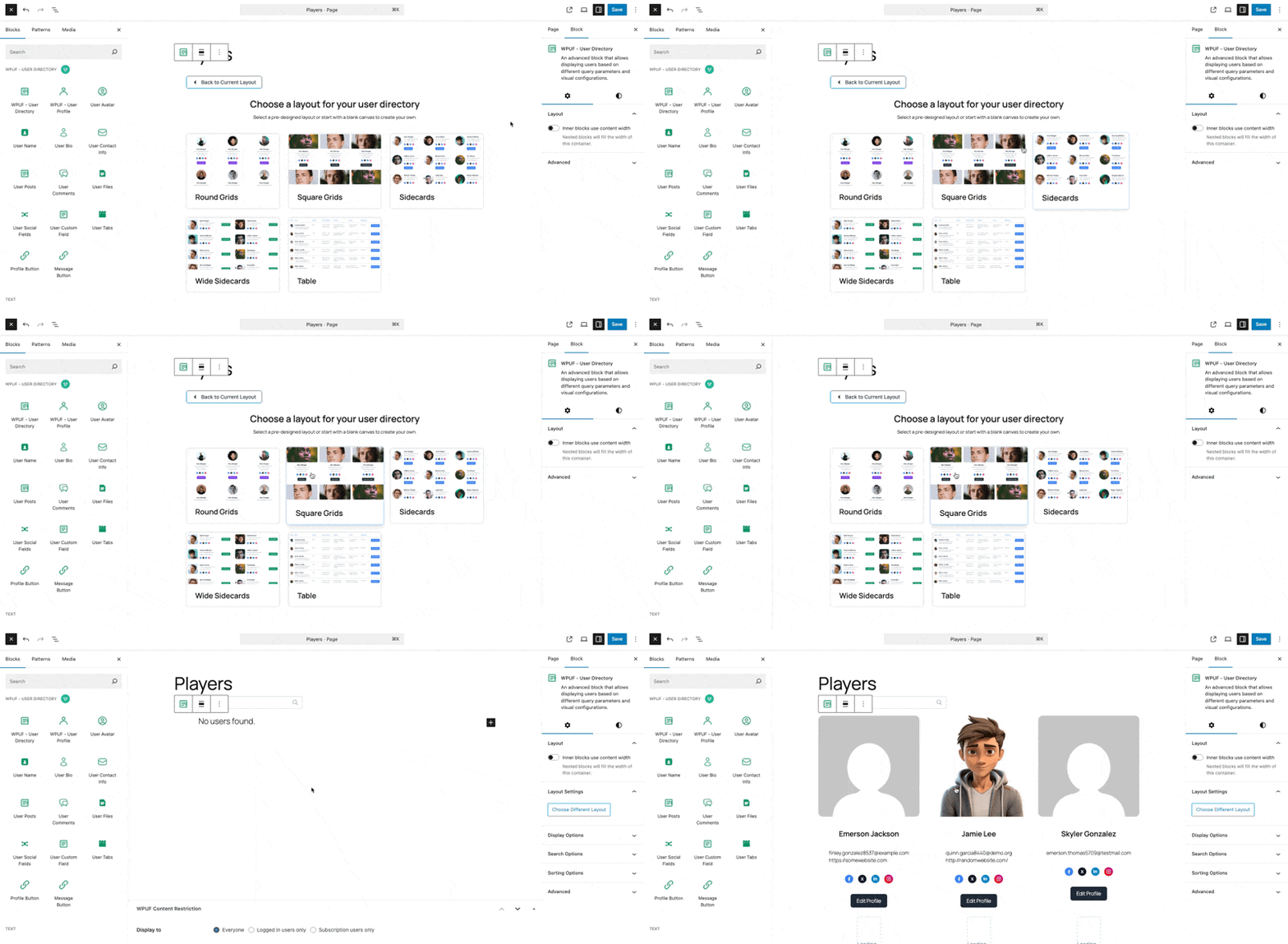
    Step 2: Choose Your Layout

    When you add the block, you’ll see layout options:
    Round Grids, Square Grids, Sidecards, Wide Sidecards, Table

    Step 3: Add User Information Blocks

    Inside the User Directory Block, you can add supporting blocks like:

    • User Avatar – Profile pictures
    • User Name – Display names
    • User Bio – Biographies
    • User Contact Info – Emails, websites, phone numbers
    • User Social Fields – Social media links
    • User Custom Field – Any custom usermeta
    • User Posts / Comments / Files – User-generated content
    • Profile Button – Links to individual user profiles

    Block Settings

    Click the User Directory Block to configure its settings in the sidebar.

    🔹 Layout Settings

    • Choose Different Layout – Switch between table, card, and grid designs.
    • Users Per Row (Grid Layouts) – Control how many users appear per row (e.g., 1, 2, 3, or 4).

    🔹 Display Options

    User Roles

    • All Roles – Show all users (default).
    • Specific Roles – Display only Administrators, Editors, Authors, etc.
    • Multiple Roles – Select multiple roles for inclusion.

    Exclude Options

    • Exclude Roles – Hide users from specific roles.
    • Exclude Users – Hide specific individual accounts.
    • Max Profiles Per Page – Control pagination (1–50 per page).

    🔹 Search Options

    • Toggle ON to show a search bar.
    • Toggle OFF to hide search.

    Search Settings (when enabled)

    • Search Placeholder – Text inside the search box (default: “Search Users”).
    • Searchable Fields – Choose which fields are searched:
      • Username
      • Email
      • Display Name
      • First Name
      • Last Name
      • Custom fields (e.g., job title, department)

    🔹 Sorting Options

    Enable Frontend Sorting

    • Toggle ON to let visitors sort results.
    • Toggle OFF to use only the default sort order.

    Sort Settings

    • Available Sort Options – Select from:
      • User ID
      • Username
      • Email
      • Display Name
      • Registration Date
    • Default Sort Order – Ascending (A–Z) or Descending (Z–A).

    Layout Options in Detail

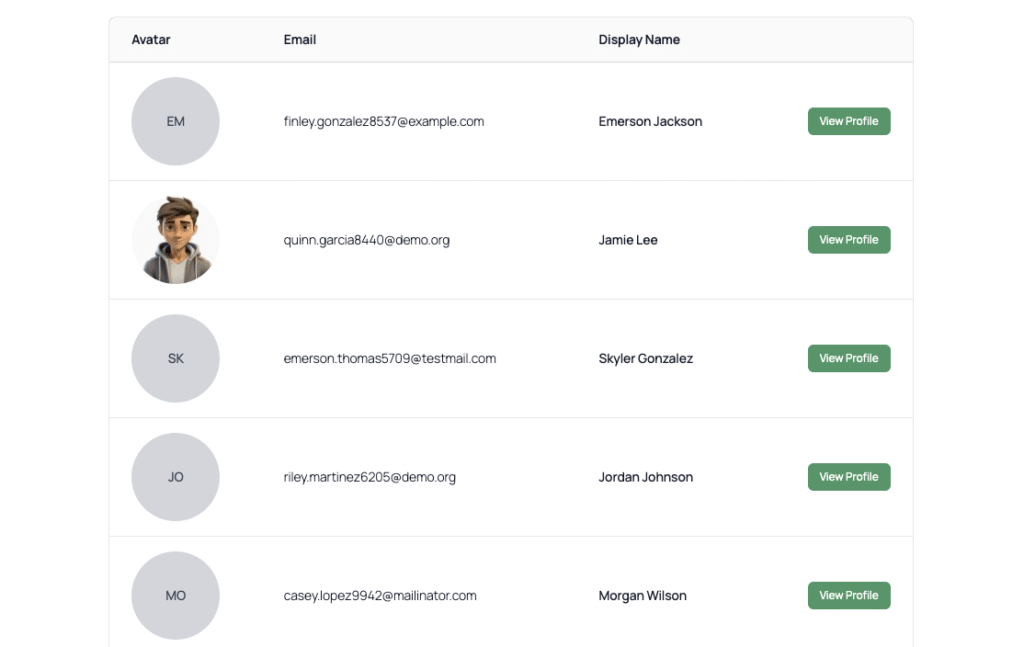
    Table Layout

    • Best for: Business directories, author lists, structured data.
    • Features: Displays users in a traditional table.
    • Special Settings:
      • Show Avatar – Toggle avatars in the table.
      • Avatar Size – Small, Medium, or Large.
      • Avatar Shape – Circle or Square.
      • Avatar Fallback Type – Show initials when no avatar is available.
      • Table Columns – Choose which columns to show (e.g., email, display name, role).

    Other Layouts: Round Grids, Square Grids, Sidecards, Wide Sidecards

    • Extra design options for different site styles.
    • Choose the one that fits your branding best.

    Search Functionality

    • Visitors can type into the search box.
    • The system checks the selected searchable fields.
    • Results update instantly with matching users.

    Search Tips:

    • Enable multiple fields for flexibility.
    • Include custom fields if your users have specific metadata.
    • Always test search with real user data.

    Sorting and Organization

    • Default Sorting → Set the default order (e.g., by display name ascending).
    • Frontend Sorting → Let users sort dynamically.
    • Pagination → Adjust how many users show per page.

    Unlock the User Directory module with WPUF Professional and start showcasing your users beautifully. Get it directly from weDevs site.


    Use Cases

    Member Directory

    Layout: Modern Cards
    Roles: All Roles
    Search: Enabled
    Sort: Display Name (Ascending)
    Blocks: Avatar, Name, Bio, Profile Button
    

    Team Page

    Layout: Professional Grid
    Roles: Administrators + Editors
    Search: Enabled
    Sort: Display Name (Ascending)
    Blocks: Avatar, Name, Custom Field (Job Title), Contact Info
    

    Author Directory

    Layout: Classic Table
    Roles: Authors + Editors
    Search: Enabled
    Sort: Registration Date (Descending)
    Table Columns: Email, Display Name
    Blocks: Avatar, Name, Posts, Profile Button
    

    Troubleshooting

    Directory is Empty

    • Wrong roles selected.
    • Excluded all users.
    • Check User Roles setting.

    Search Not Working

    • Search disabled.
    • No searchable fields selected.
    • Users lack data in those fields.

    Layout Looks Wrong

    • Too many blocks inside each user card.
    • Try switching layouts.
    • Test mobile responsiveness.

    Performance Issues

    • Too many users per page.
    • Too many searchable fields.
    • Use caching plugin for optimization.

    Tips & Best Practices

    • For Beginners → Start simple with avatars, names, and profile buttons.
    • For User Experience → Always enable search and keep pagination reasonable.
    • For Performance → Optimize avatars and limit search fields.
    • For Mobile → Use card or grid layouts (Layout 2 or 3).

    Success Checklist

    Before you publish your directory:

    • ✅ Added the User Directory Block
    • ✅ Chosen a layout (table, card, or grid)
    • ✅ Added supporting blocks (Avatar, Name, Bio, etc.)
    • ✅ Configured user roles, exclusions, and pagination
    • ✅ Enabled search and/or sorting if needed
    • ✅ Set table-specific settings (if using Layout 1)
    • ✅ Tested on mobile and desktop
    • ✅ Previewed the final result

    With the User Directory Block, you can turn WordPress into a flexible membership or team directory, styled exactly the way you want, directly in Gutenberg.

  • Introducing WPUF User Directory Blocks: Build Custom User Directories with Gutenberg

    Introducing WPUF User Directory Blocks: Build Custom User Directories with Gutenberg

    Creating a user directory or profile page in WordPress isn’t always simple. By default, WordPress gives you user registration and management, but it doesn’t provide a flexible way to showcase users on the front end. Whether you’re building a membership site, team page, student directory, or a community hub, you often need plugins or custom development to make it work.

    Recently, I’ve developed the Gutenberg Blocks for WPUF User Directory. A complete solution that lets site admins build beautiful, flexible, and customizable user directories right inside the block editor. These blocks allow you to display users in a listing format or show detailed individual profiles, with total control over layout, styling, and visibility.

    In this post, I’ll introduce the main blocks, explain how they work together, and share use cases where they shine. This is part 1 of a full series that will cover setup, customization, and detailed guides for each block.


    What Are WPUF User Directory Blocks?

    The WPUF User Directory Blocks are a set of Gutenberg blocks designed to give WordPress site owners a drag-and-drop way to display users, their information, and their content. Instead of relying on shortcodes or fixed templates, you can build dynamic user directories and profiles directly in the WordPress editor.

    There are two main container blocks and several supporting blocks that display user details, content, or interactions:

    Main Blocks

    • User Directory Block – Display a list of users (great for membership listings or team pages).
    • User Profile Block – Display a detailed view of a single user (perfect for profile pages or author pages).

    User Information Blocks

    • User Avatar Block – Show profile pictures.
    • User Name Block – Display the user’s display name.
    • User Bio Block – Highlight the user’s biography.
    • User Contact Info Block – Add email, phone, or other contact details.
    • User Custom Field Block – Display custom WP usermeta fields (job titles, departments, etc.).
    • User Social Fields Block – Add social media links (Facebook, Twitter, LinkedIn, etc.).

    Content Blocks

    • User Posts Block – Display posts authored by the user.
    • User Comments Block – Show recent comments.
    • User Files Block – Display files uploaded by the user.

    Why Use Gutenberg User Directory Blocks?

    The WPUF User Directory Blocks are built for flexibility:

    • Native Gutenberg Experience – Build directories visually with drag-and-drop blocks.
    • Fully Customizable – Control typography, colors, spacing, and layout within the editor.
    • Conditional Visibility – Show or hide blocks based on user role or viewer role.
    • Responsive & Mobile-Friendly – Works on any device without extra coding.
    • Extendable – Use with custom usermeta, integrations, or additional plugins.

    This means you can design exactly the directory or profile layout you need, without touching a line of code.


    Example Use Cases

    Here are a few real-world ways you might use the WPUF User Directory Blocks in WordPress:

    Team Directory

    Perfect for business sites showcasing staff.

    User Directory Block
    ├── User Avatar Block
    ├── User Name Block
    ├── User Custom Field Block (Job Title)
    └── Profile Button
    

    Membership or Student Directory

    Great for schools, communities, or clubs.

    User Profile Block
    ├── User Avatar Block
    ├── User Name Block
    ├── User Bio Block
    ├── User Contact Info Block
    ├── User Social Fields Block
    └── User Posts Block
    

    Author Pages for Blogs

    Turn your authors into featured contributors.

    User Profile Block
    ├── User Avatar Block
    ├── User Name Block
    ├── User Bio Block
    ├── User Posts Block
    ├── User Comments Block
    └── User Social Fields Block
    

    Each of these layouts can be styled, reordered, or expanded with just a few clicks in the block editor.

    Unlock the User Directory module with WPUF Professional and start showcasing your users beautifully. Get it directly from weDevs site.


    SEO Benefits for Your WordPress Site

    Adding user directories and profiles isn’t just good for usability, it can also boost your site’s SEO:

    • More indexable content (author pages, team bios, member listings).
    • Internal linking opportunities (profile buttons link to user pages).
    • Increased dwell time (visitors spend longer browsing user content).

    If you run a membership site, educational portal, or content-heavy blog, structured user directories can help both users and search engines navigate your site better.


    What’s Next in the Series

    This is just the beginning. Over the coming weeks, I’ll publish dedicated posts on each block, including:

    • Quick Start Guide: Building your first directory.
    • User Directory Block – settings, layouts, and customization.
    • User Profile Block – detailed profiles and advanced setups.
    • User Avatar, Bio, and Contact Info Blocks – displaying user details.
    • User Posts, Comments, and Files Blocks – showcasing user activity.
    • User Social Fields and Custom Field Blocks – extending profiles with social links and metadata.
    • Advanced Features – conditional display, responsive layouts, and integrations.

    Each post will include screenshots, block settings, and real-world examples to help you implement the features step by step.


    Wrapping Up

    With the new WPUF User Directory Blocks, you no longer need complex shortcodes or heavy third-party plugins to create user listings and profiles. Instead, you can design beautiful, functional directories right inside the Gutenberg editor, whether it’s for a team page, membership listing, or a full community directory.

  • Mastering wp_debug_backtrace_summary(): WordPress Debugging Made Easy (and Fun)

    Let’s face it—debugging in WordPress can sometimes feel like chasing a mosquito in a dark room. You know there’s a bug, but where?!

    Thankfully, WordPress provides us with some handy tools to make our lives a whole lot easier. One of those unsung heroes is the wp_debug_backtrace_summary() function.

    What Is wp_debug_backtrace_summary() and Why Should You Care?

    In simple terms, wp_debug_backtrace_summary() gives you a neat little breadcrumb trail of function calls that led to the current point in your code. It’s like GPS for your brain when you’re trying to figure out “Wait… how did we even get here?”

    Think of it as a summarized version of debug_backtrace(), but trimmed down, cleaner, and just easier to read. It tells you what function was called, from where, and in what order.

    Common Use Cases

    • – Tracking down who called a particular function (plugin? theme? some mysterious ghost?)
    • – Debugging unexpected behavior in hooks, filters, or template overrides
    • – Custom logging or building a dev toolkit
    • – Adding context to error logs

    A Real Example (Because We Love Code)

    Let’s say you’re debugging a custom plugin and you want to know what triggered your function:

    function my_custom_function() {
        error_log( wp_debug_backtrace_summary() );
    }
    

    This will output something like:

    My_Plugin::some_method(), WP_Hook::apply_filters(), do_action('init')

    Translation? Your function was called by some_method() inside My_Plugin, which was triggered by a WordPress hook during the init action. Detective mode: Activated.

    Function Breakdown: Going Under the Hood

    Here’s the function signature:

    wp_debug_backtrace_summary( $ignore_class = null, $skip_frames = 0, $pretty = true )

    Let’s unpack those parameters like it’s a birthday gift:

    • $ignore_class — Want to ignore your own class to keep the output clean? You can.
    • $skip_frames — Skip N number of stack frames. Handy if you’re wrapping the function in helpers.
    • $pretty — If true, you get a nice readable format. False gives you raw class/function names (great for nerdier logging).

    🧠 Bonus Tip: When Not to Use It

    This function is for development and debugging. Don’t leave it in production unless you’re logging for a very specific reason and you know what you’re doing. Otherwise, it’s like leaving a walkie-talkie on during a top-secret mission.

    The Difference Between wp_debug_backtrace_summary() vs debug_backtrace()

    debug_backtrace() is like the full Sherlock Holmes novel: detailed, deep, but maybe a bit much when all you want is the killer’s name.
    wp_debug_backtrace_summary() is the: just the juicy parts you care about.

    Also, the WordPress function makes sure the output is clean, consistent, and WordPress-friendly.

    Wrapping Up

    If you’re debugging WordPress and still not using wp_debug_backtrace_summary(), you’re missing out on one of the easiest ways to track down issues. It’s fast, informative, and helps you stay sane when your hooks, plugins, and themes start playing the blame game.

    Next time something weird happens in your WordPress site (and let’s be honest, it will), drop in a wp_debug_backtrace_summary() and follow the breadcrumbs.

    Happy debugging, and may your logs be ever helpful!